Element: Create

Function
Create elements manually.
Call
Main Menu : Mesh > Element > Create...

<Create Element>
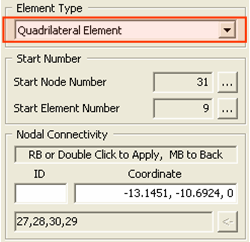
Element Type
Assign an element type.
Line Element
Generate 1D Element.
Triangular Element
Generate triangular element.
Quadrilateral Element
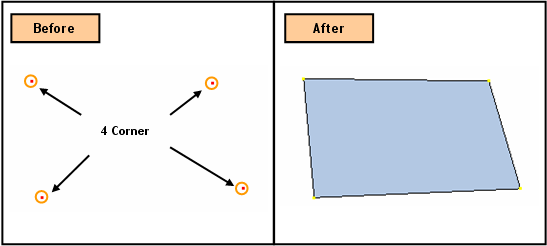
Generate quadrilateral element.
Tetrahedron Element
Generate Tetrahedron Element.
Pentahedron Element
Generate Pentahedron Element.
Hexahedron Element
Generate Hexahedron Element.
Start Number
Assign a new starting node and element number. This number is auto-set to the largest number in use +1. To modify this item, click _Button.png) and select an option to specify a desired number.
and select an option to specify a desired number.
Smallest Unused Number
It starts from the smallest number among unused numbers.
Largest Unused Number + 1
It starts from the largest number in user +1.
User-Defined Number
User can directly enters the number they wish to set ID.
Nodal Connectivity
User the following two methods to enter the element's nodal connectivity.
1. Using existing nodes : Type in the node numbers in the nodal connectivity field.
2. Creating new nodes : Enter the coordinates of each nodes. The coordinates may be specified using Snap.
As entering each node, the preview of creating element appears automatically in the Work Window. When all nodes of an element is specified completely, it will be displayed in grey Wireframe. Double-click or Righ-click of the mouse completes creating elements.
To cancel the previous node input, click the middle (scroll) button of the mouse or  button.
ID
Type in node ID.
Coordinate
Enter the coordinates of node. It may be specified using Snap.