While analyzing influence lines or influence
surfaces due to traffic loads, trace and graphically display the vehicle
loading condition (corresponding moving load case and location) that results
in the maximum/minimum displacement of a node. The loading condition is
converted into a static loading and produced as a model file of the MCT
type. This is an extremely useful feature when we wish to find the loading
condition that creates the maximum or minimum displacement.
Call
From the Main
Menu select Results
> Moving Load Tracer > Displacements.
Select Results
> Moving Load Tracer > Displacements in the Menu tab of the Tree Menu.
Usage
Moving Load Cases
Select a moving load case (vehicle type)
that is to be traced and located at a position satisfying the max/min
displacement.
Key Node:
Enter a node number, or click the entry field and the desired node in
the working window.
Scale Factor:
Enter the drawing scale factor for the influence line/surface. This does
not affect the influence line/surface values.
Components
Select a desired displacement component.
DX:
Displacement component in GCS X-direction
DY:
Displacement component in GCS Y-direction
DZ:
Displacement component in GCS Z-direction
RX:
Rotational component about GCS X-axis
RY:
Rotational component about GCS Y-axis
RZ:
Rotational component about GCS Z-axis
Type of Display
Assign the type of display.
Contour
Display the contour of the influence line/surface together with the
vehicle loading condition.
Ranges: Define the contour ranges.
: Assign the color distribution
range of contour. Using the function, specific colors for specific ranges
can be assigned.
Note
Contour Range Max/Min values can be larger than the max/min output values.
If the
Contour Range values exceed the output values, they are entered at Rank
0 and Rank 11.
Number of
Colors: Assign the number of colors to be included in the contour
(select among 6, 12, 18, 24 colors)
Colors: Assign or control the
colors of the contour.
Color Table:
Assign the type of Colors.
: Control the colors by zones
in the contour.
Reverse
Contour: Check on to reverse the sequence of color variation in
the contour.
Contour
Line: Assign the boundary line color of the contour.
Element
Edge: Assign the color of element edges while displaying the contour.
Contour Options: Specify options
for contour representation.
Contour
Fill
Gradient
Fill: Display color gradient (shading) in the contour.
Draw Contour Lines: Display color boundaries in the contour.
Draw Contour
Line Only
Display only the colored boundaries of the contour.
Mono line:
Display the boundaries of the contour in a mono color.
Contour
Annotation
Legend or annotation signifying the ranges of the contour is displayed.
Spacing:
Specify the spacing of the legend or annotation.
Coarse Contour
(faster) (for large plate or solid model)
Represent a simplified contour for a large model using plate or solid elements
in order to reduce the time required to represent a complete contour.
Extrude
Where plate elements or solid elements along a cutting plane are represented
in contour, a three dimensional contour is created. The positive direction
of the analysis results is oriented in the z-axis direction of the local
element coordinate system.
The option is not concurrently applicable with the Deformed Shape option.
Similarly, the option cannot be concurrently applied to the cases where
the Hidden option is used to display plate element thicknesses or the
Both option is used to represent Top & Bottom member forces (stresses).
Legend
Display various references related to analysis results to the right
or left of the working window.
Legend Position:
Position of the legend in the display window
Rank Value
Type: Specify a type of values in the Legend and the number of
decimal points.
Applied
Loads
Graphically display the vehicle load condition for which the analysis
results in the max/min displacement.
Set a detail display condition for the vehicle load case.
Load Scale
Factor: Enter the drawing scale factor for the load representation.
Load
Values: Option to display the load values
Include Impact Factor
Reflect the impact factor in the display.
Maximum Value
Produce the maximum or
minimum value calculated from the moving vehicle load analysis.
: Where Influence Line or
Influence Surface analysis has been carried out, the moving load case,
which produces the maximum or minimum results, is converted into a static
loading and produced as an MCT type.
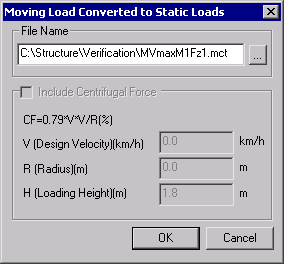
Moving Load Converted to Static Load dialog box
File Name
Enter the file path and name of the MCT
file to be output.
Include Centrifugal Force
In the case of a curved bridge include additional
loads created by Centrifugal Force in the conversion into the static loading.
.jpg)
 Moving Load Cases
.jpg) : Assign the color distribution
range of contour. Using the function, specific colors for specific ranges
can be assigned.
: Assign the color distribution
range of contour. Using the function, specific colors for specific ranges
can be assigned..jpg) : Control the colors by zones
in the contour.
: Control the colors by zones
in the contour..jpg) : Where Influence Line or
Influence Surface analysis has been carried out, the moving load case,
which produces the maximum or minimum results, is converted into a static
loading and produced as an MCT type.
: Where Influence Line or
Influence Surface analysis has been carried out, the moving load case,
which produces the maximum or minimum results, is converted into a static
loading and produced as an MCT type.