 Commands
Function
Select options for displaying Tree View, Message Window (Command Line) and Status Bar on the screen, and setup detailed options for Tool Bar. Assign Shortcut Keys to frequently used functions, or modify/delete them.
Call
From the Main Menu select Tools > Customize > Tree View.
From the Main Menu select Tools > Customize > Message Window.
From the Main Menu select Tools > Customize > Status Bar.
From the Main Menu select Tools > Customize > Customize...
Set the Works tab as the basic default tab of the Tree Menu.
Function
Commands
Drag & drop a command of interest into a specific Toolbar, in order to add the command to the corresponding Toolbar. In addition, unnecessary commands can be removed from the Toolbar by dragging & dropping the command outside the Toolbar.

Commands dialog box
Categories
Select a category in which the command to be added belongs.
Commands
Select a command to be added, and drag & drop it to the desired position.
Description
Short description of the selected command
ToolbarsAvailable toolbars are listed
in the Toolbars dialog box. Checked toolbars ('.jpg) ') are activated
in the Model Window.
') are activated
in the Model Window.
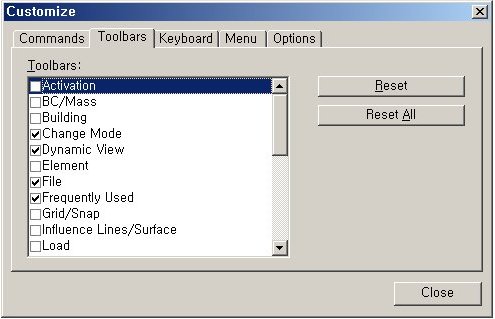
Toolbars dialog box
 :Reset the selected Toolbars
to default.
:Reset the selected Toolbars
to default.
 :Reset all
the Toolbars to default.
:Reset all
the Toolbars to default.
Keyboard
The user can manually define the shortcut keys for each function.
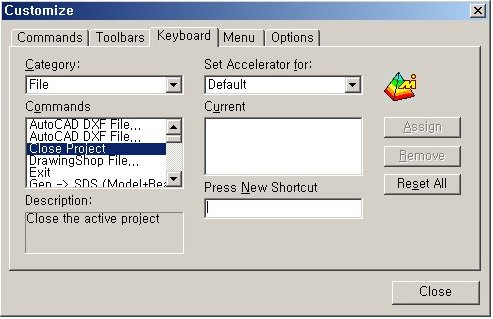
Keyboard dialog box
Category
Select a desired group among the function groups registered in the Menu
bar for which a Shortcut Key is to be added or modified.
Commands
The sub-menus of the selected group in the Category field are listed. Select
a function, which represents a shortcut key to be added or modified.
Current
The shortcut key pertaining to the selected
function is listed.
Press New Shortcut
Register the shortcut key by the keyboard.
If the shortcut key is pre-assigned the registered function will be displayed
in the window below.
.jpg) : Register the entered
shortcut key.
: Register the entered
shortcut key.
.jpg) : Delete the assigned
shortcut keys.
: Delete the assigned
shortcut keys.
.jpg) : Reset the shortcut keys
to the defaults.
: Reset the shortcut keys
to the defaults.
Note
When assigning a shortcut
key, the use of a single character or in combination with the [Alt] key
may not operate properly depending on the working circumstances. It is
thus recommended that combinations be used in conjunction with [Ctrl],
[Shift], [Ctrl]+[Alt], [Ctrl]+[Shift], etc. The numbers on the Numerical
Pad to the right side of the keyboard are recognized as different characters
rather than general numbers. The registered (customized) shortcut keys
may not operate properly if they conflict with those of the operating
system.
Note
When Shortcut Keys are set up, the stored shortcut key information will
be maintained even after the program is reinstalled.
Menu
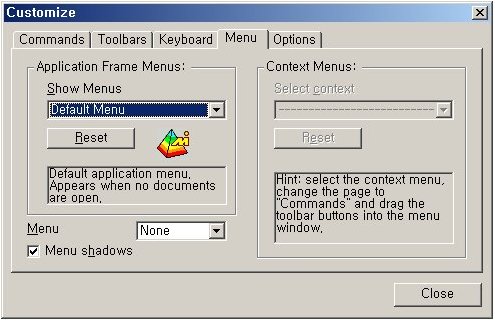
Menu dialog box
Menu
Select the type of Pull-Down Menu (Available types: None (=default), Unfold, Slide and Fade).
Menu shadow
Give a shadow effect to the Pull-Down Menu.
Options
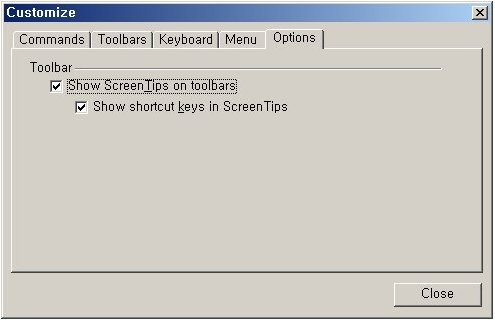
Options dialog box
Show ScreenTips on toolbars
Place an option whether to display the icon explanations upon placing the mouse cursor over the object.