midas Gen Enhancements
High Speed Open GL Graphics
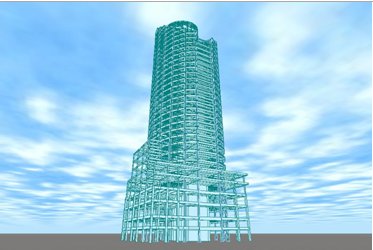
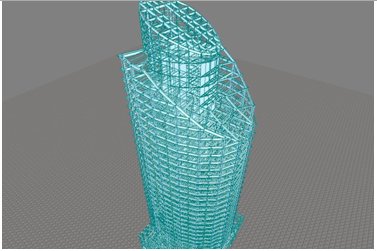
1. High Graphic (Rendering) Speed
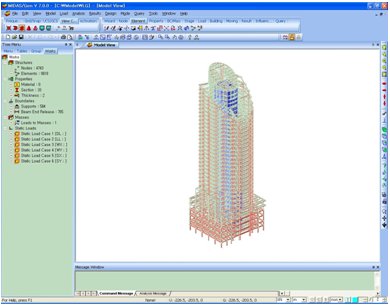
With high graphic speed, rendering, from
large solid model to line type element, becomes much faster.
|
Model |
Model Shape |
Number of Elements |
Elapsed Time
Gen
V671 |
Elapsed Time
Gen
V7 |
|
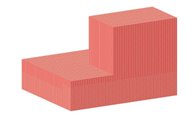
Solid Model
|
|
Node: 132681
Element: 119951
|
60 sec |
9 sec |
|
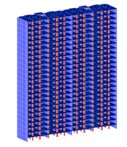
Slab Model
|
|
Node: 52016
Element: 56751 |
29 sec
|
6 sec |
|
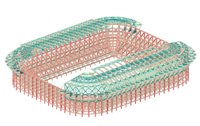
Line Model
(World Cup Stadium) |
|
Node: 7348
Element: 15812 |
36 sec
|
5 sec |
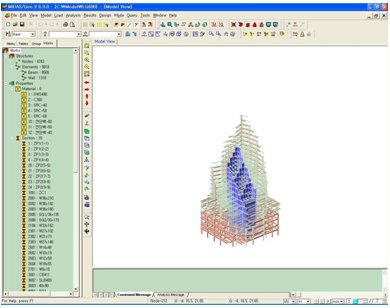
Elapsed Time until removing
hidden lines
|
|
|
|
Midas/Gen V.671 |
Midas/Gen V.7 |
Comparison of rendering
speed
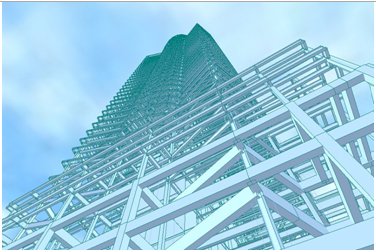
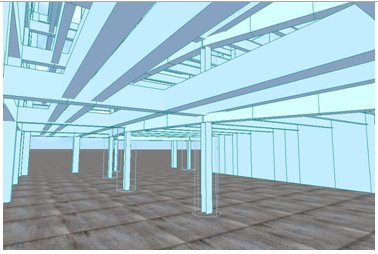
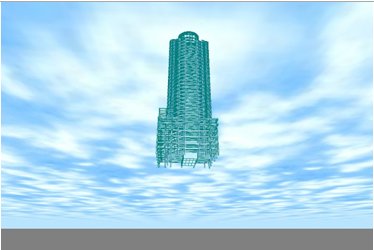
2. Walkthrough Mode
Walkthrough Mode, to complement the existing
Flying Mode, has been added. Move upward, downward, left and right, and
view changes and movements can be applied separately. While using Walkthrough
Mode, viewpoints, the views and moving directions can be freely changed.
This allows the user to check/view the model almost realistically.
Walkthrough Mode
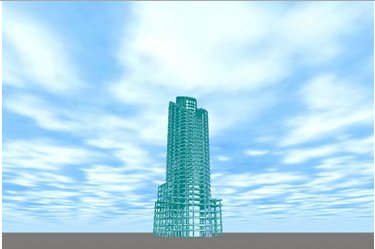
The usage of “Walkthrough Mode” is
as follows:
|
→ : Observer
rotates to the left on the model.
← : Observer
rotates to the right on the model.
↑ :
Observer
moves forward.
↓ :
Observer
moves backward. |
|
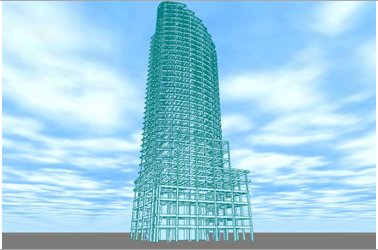
Apply
→ key |
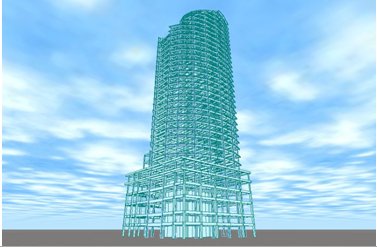
Apply ← key
|
|
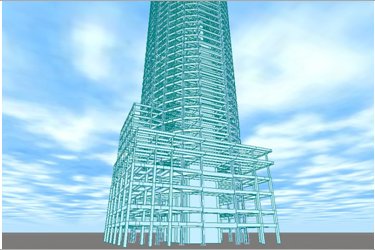
Apply
↑ key
|
Apply ↓ key |
|
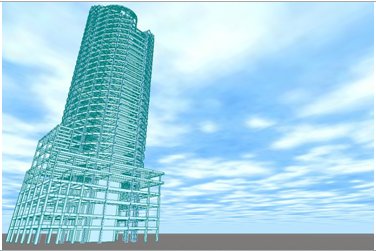
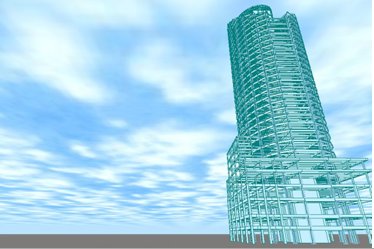
Drag while left-clicking
:
Observer’s view changes upward, downward, left or right without observer’s
moving.
Drag while right-clicking : Observer
moves forward, backward, left or right.
Control the speed using +, - keys on the number
keyboard.
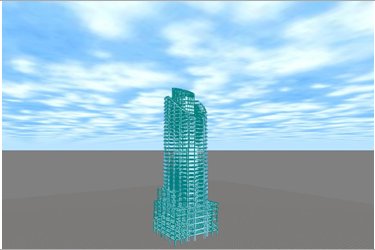
Drag while pressing the mouse wheel: Equivalent
to Pan (Observer’s viewpoint moves upward, downward, left or right) |
|
Drag
to the left while left-clicking |
Drag to the right while left-clicking |
|
Drag
downward while pressing the mouse wheel
|
Drag
upward while pressing the mouse wheel |
3.Generate Arbitrary Sections
When the section shapes
that are not supported by MIDAS/Gen are to be used, generate an arbitrary
section to scale in MIDAS/Gen using the arbitrary section generation option
(MIDAS/SPC - convert to MIDAS Section File).
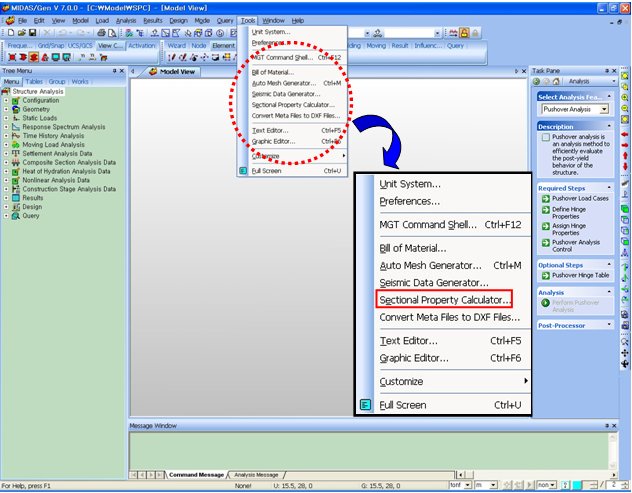
(1) Tools > Sectional
Property Calculator
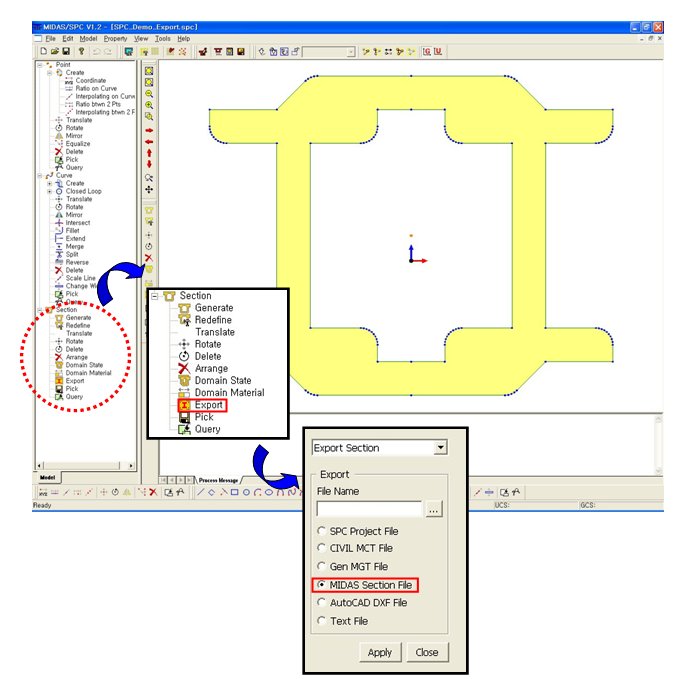
(2) After generating a section, Export >
MIDAS Section File
Using
MIDAS/SPC, generate a user-defined section and export the section to generate
*.sec file
.
(3) Import SPC
Import *.sec file and save
in Section Data.
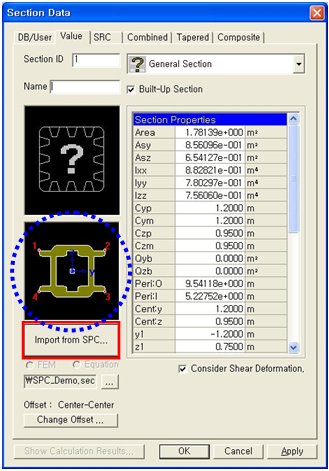
After analysis, visually
check the stress distribution in the section.
For more details, refer
to Tools > Sectional Property Calculator.
4. Application Look
A “Framework Style”
has been added to change the Application Look. The user can select the
Framework Style by preference. Application Look can be changed in Window
> Application Look. The available Styles are as follows:
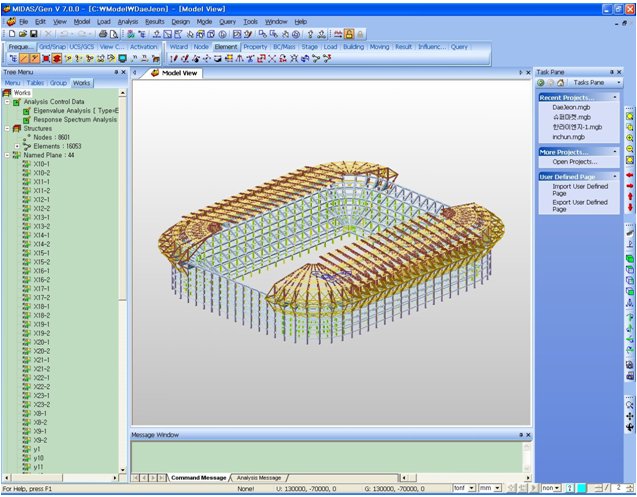
Office 2000 Style
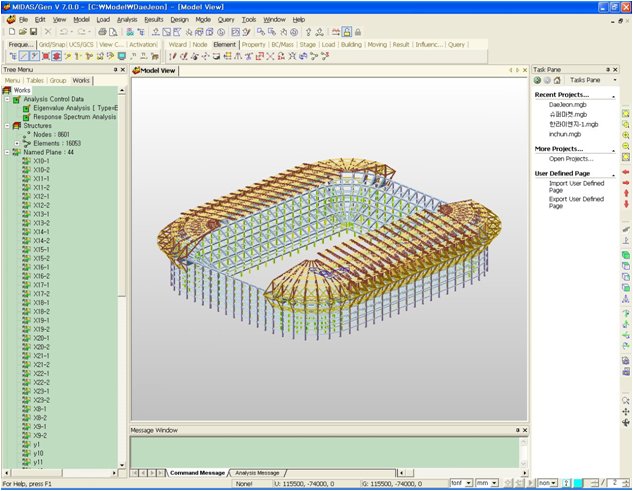
Office XP Style
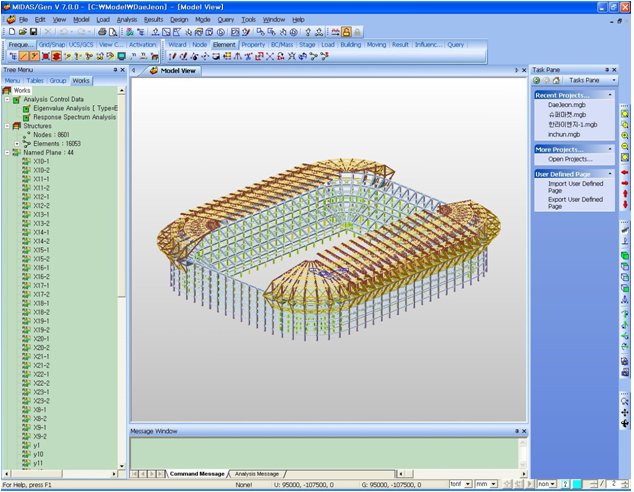
Office 2003 Style
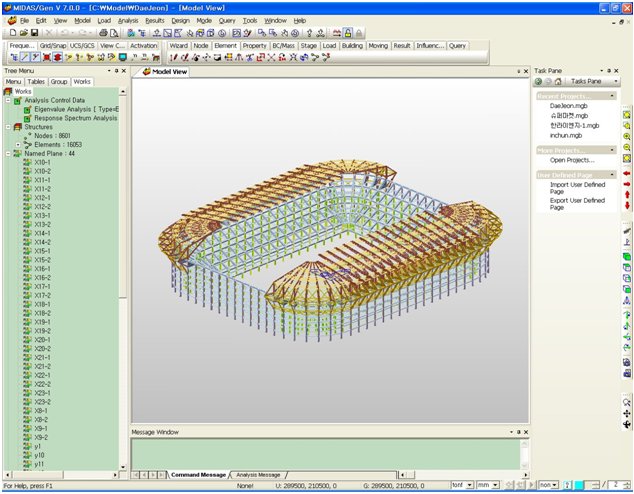
Visual Studio.net 2005 Style
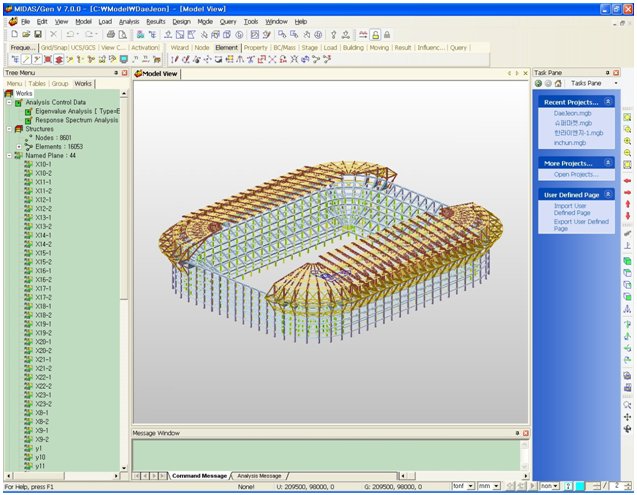
Windows XP Style
5. Task Pane
Display work procedure, required input
items and optional input items for each analysis case. This helps the
user to enter the analysis data easily. Task Pane displays work procedure
for advanced analysis functions and description on input items so as to
enable the user to work more easily. In addition, Task Pane data can be
saved in html format in the User Folder, so that the user can directly
write or add the required input items for analysis.
For more details, refer to GUI Information
> Task Pane.
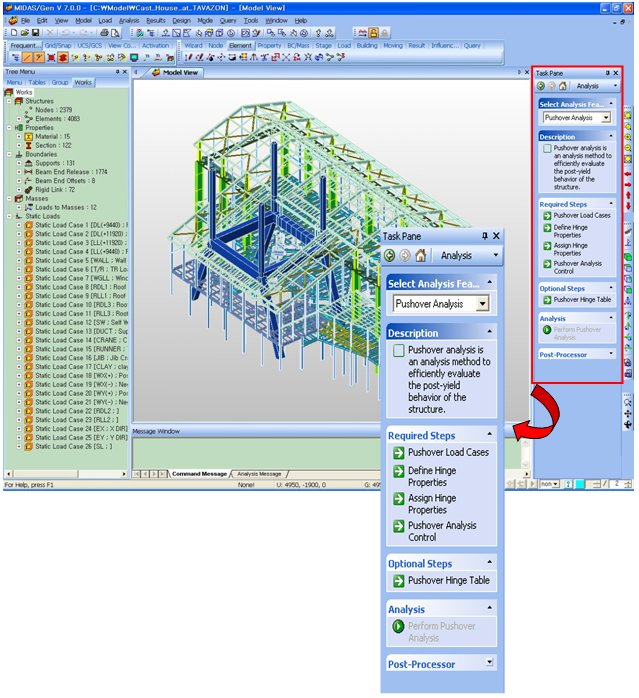
Task Pane
6. Main/Sub component Toolbar Added
Main component and Sub component Toolbars
have been added to the existing Toolbar to group the relevant Icons.
Main component Toolbar provides View
and Graphic related Icon Groups and Sub component Toolbar provides Modeling
and Post-processor related Icon Groups. Main component and Sub component
can be customized as per the preference of the user.
For more details, refer to GUI Information
> Toolbar.
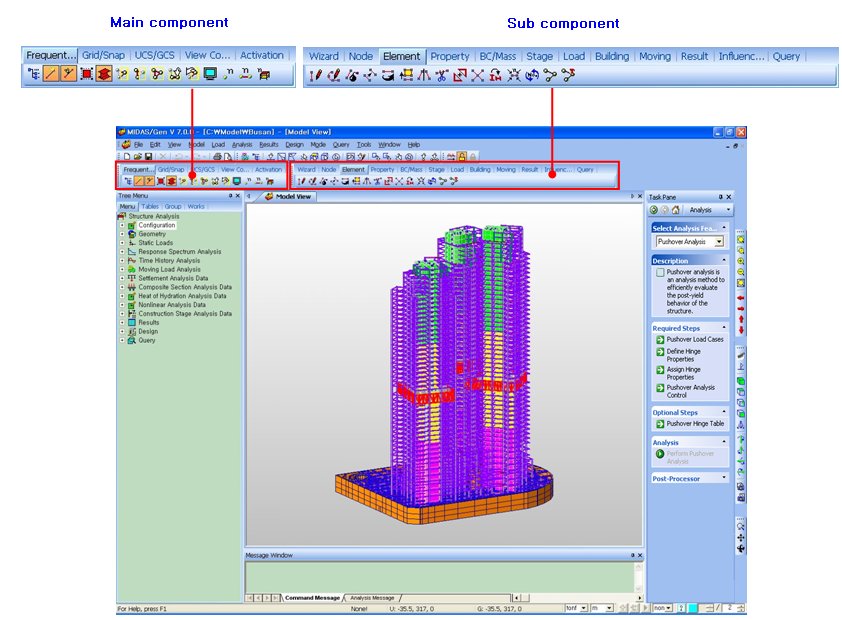
Main/Sub component Toolbar
7. Label Show/Hide
“Hidden Labels”
feature has been added to show/hide the boundary symbols, node numbers,
etc. that are hidden in the model. Check on or off the “View >
Display > Hidden Labels” option to show/hide the labels. This
feature can be applied to node and element symbol/number, load symbol/value,
boundary symbol, etc. In addition, Hidden Labels can be similarly applied
to the results display.
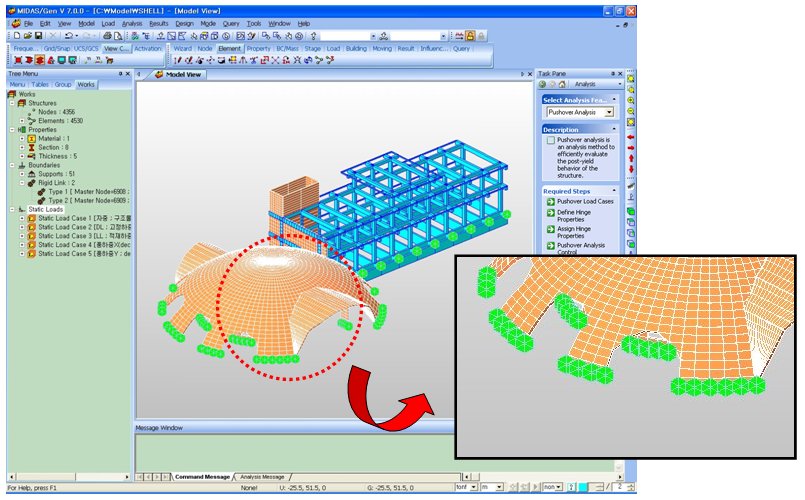
Label Hide
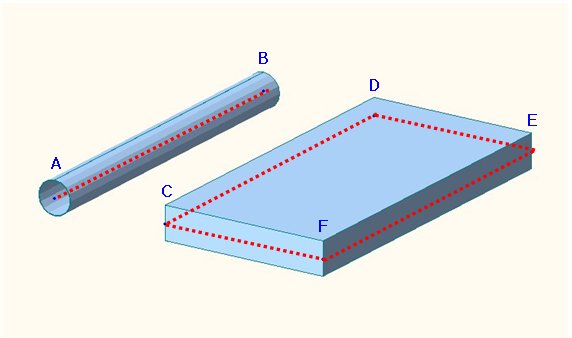
In cases of Frame and Plate elements,
when the node and element symbol/number, load symbol/value, boundary symbol,
etc. is hidden due to the element thickness and shape, Hidden Labels feature
cannot be applied. As shown in the figure below, node B is hidden due
to the element shape (Pipe) and node D is hidden due to the element thickness.
Hence, the Hidden Labels feature cannot be applied. However, for Solid
elements, the Hidden Labels feature is applied even when the node and
element symbol/number, load symbol/value, boundary symbol, etc. is hidden.
8. Legend Range Change
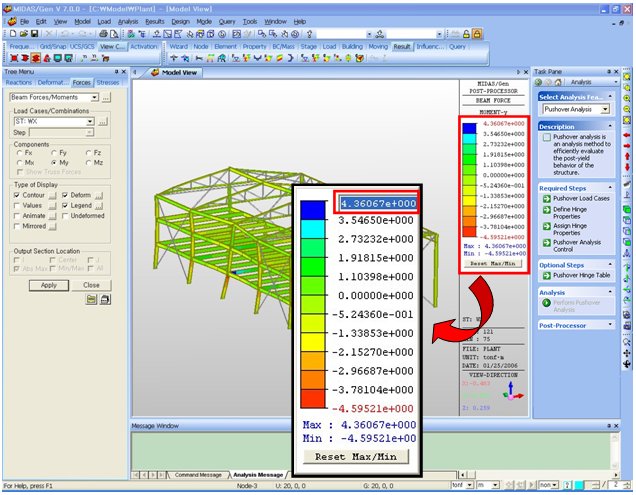
The Max and Min values displayed
on the Legend can be specified by the user.
If the mouse is clicked
on the Legend in the Model Window, Legend becomes active to enable the
user to change the Max and Min values. Once the user changes the Max and
Min values, other rank values are automatically calculated.
Use  to apply default values.
Legend Range Change
9.
Improved Printing Quality
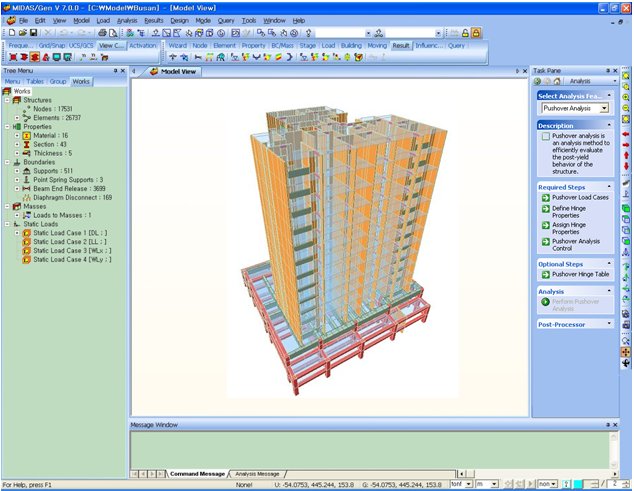
High resolution printout
applying the transparency effect, etc. has been improved, so that the
graphics can be printed exactly as shown on the screen. In addition, when
printing bmp files, the resolution can be adjusted.
Transparency Effect
How
to Solve a Graphic Problem
Since
MIDAS/Gen V.7 uses the Open GL graphic acceleration, the graphics appear
as “smooth” even in a large scale model. However, when graphic
acceleration cannot be used, the generation of graphics becomes slow,
and there is a problem in graphic display.
In such cases, the problem
can be solved in the following steps. If the problem is not solved, call
or e-mail to MIDASoft.
1. When the PC currently
in use has not been set to use the graphic acceleration:
If the graphic speed of
V.7 is considered to be lower than that in a similar type of PC, check
if the graphic acceleration is working.
To check this, click on
the Troubleshoot tab in Windows Display Properties>Settings>Advanced
and verify if the hardware acceleration is set to “Full”. If
the hardware acceleration is disabled, enable all accelerations to increase
the graphic speed.
2. When the Graphic Card
cannot fully support the graphic acceleration:
If the problem is caused
by the graphic acceleration while operating Windows Application Programs,
it is because the Graphic Card of the PC in use does not fully support
the hardware acceleration.
GeForce and ATI series
Graphic Cards, which are present in over 90% of PC, have undergone the
test successfully. If this problem occurs while using other Graphic Cards,
except those mentioned earlier, modify the “Stream Buffer” in
MIDAS Gen>Preferences>Environment>Graphics to not use the hardware
acceleration function.
MIDAS/Gen V.7 requires
a minimum Graphic Memory of 32MB and a minimum RAM of 512MB.