Dynamic View
Dynamic View supports
views (magnification, rotation, motion) of the model so that the
model can be easily viewed from the desired viewpoints in real
time relative to the motion of the mouse. If used in connection
with  Render View,
the user can walk through (Walk Through Effect) or fly over the
structure (Bird's Eye View Effect).
Render View,
the user can walk through (Walk Through Effect) or fly over the
structure (Bird's Eye View Effect).
Note
Dynamic View can be used using the Wheel mouse.
Zoom Dynamic: Move the mouse Wheel up and down.
Pan Dynamic: Move the mouse while pressing the Wheel button.
Rotate Dynamic: Press the Wheel button while pressing the Ctrl
key.
From the Main Menu select View > Dynamic View > Dynamic > Zoom.
From the Main Menu select View > Dynamic View > Dynamic > Pan.
From the Main Menu select View > Dynamic View > Dynamic > Rotate.
Click  Zoom Dynamic
in the Icon
Menu.
Zoom Dynamic
in the Icon
Menu.
Click  Pan Dynamic
in the Icon
Menu.
Pan Dynamic
in the Icon
Menu.
Click  Rotate Dynamic
in the Icon
Menu.
Rotate Dynamic
in the Icon
Menu.
If we use the Dynamic Zoom/Rotate functions in conjunction with Render View, we can create the effects of Walk/Fly Through.
 Zoom Dynamic
Magnify the model by moving the mouse upward or rightward in the Working Window while holding the mouse left-clicked.
Shrink the model by moving the mouse downward or leftward in the Working Window while holding the mouse left-clicked.
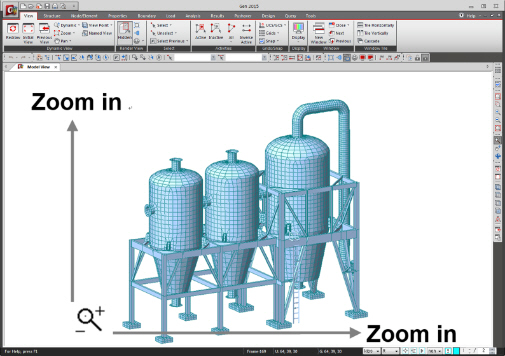
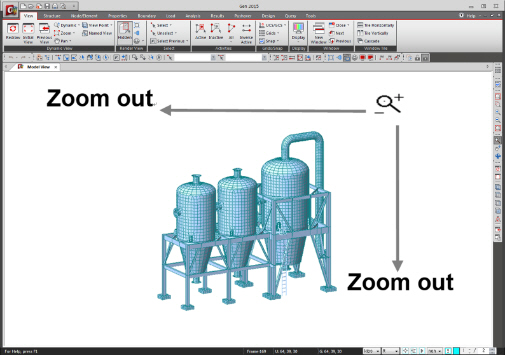
<Fig. 1> Zoom Dynamic
Pan Dynamic
Move the model which follows exactly the motion of the mouse in the same direction and distance while holding the mouse left-clicked.
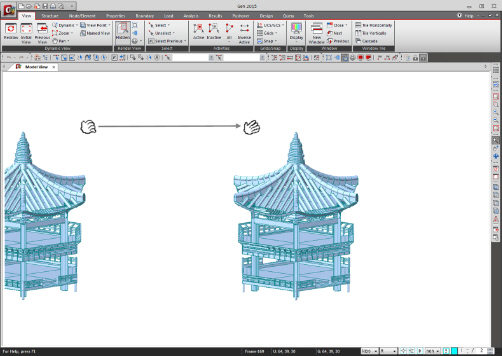
<Fig. 2> Pan Dynamic
Rotate Dynamic
Rotate the model in the counter-clockwise or clockwise directions relative to GCS Z-axis by moving the mouse leftward or rightward respectively, while holding the mouse left-clicked.
Rotate the model in the counter-clockwise or clockwise directions relative to the horizontal direction by moving the mouse up or downward respectively, while holding the mouse left-clicked.

<Fig. 3> Rotate Dynamic