Create Line Elements on Curve
Define a curve on a particular plane and create line elements on the curve.
From the Main Menu select Node/Element > Elements > Create Line Elements on Curve.
|
 Element Type
Assign the type of line elements to be created along the curve
Material / Section
/ Orientation
Material
Select a material property number, or select a material property
name provided that the material property data have been already
defined.
No.: Type in a number on the keyboard or use the mouse to enter the number
Name: Select a material property name
Click  to add,
inquire, modify or delete material property data. Material properties
can be entered either before or after creating elements.
to add,
inquire, modify or delete material property data. Material properties
can be entered either before or after creating elements.
Section
Select a section number, or select a section name provided that
the section data have been already defined.
No.: Type in a number on the keyboard or use the mouse to enter the number
Name: Select a section name
Click to add,
inquire, modify or delete the section data. Section data can be
entered either before or after creating elements.
Orientation
Beta Angle: Enter a Beta Angle to assign the sectional orientation of the line elements.
Curve Definition
Define a curve on which new line elements will be created.
Number of Segments: Number of segments in the curve to define new elements
The data entry items for each method of defining the curves are as follows :
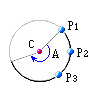
Arc by 3 points
|
Arc End Point: Assign the method of defining the end of the arc
P3: Create elements up to the 3rd point on the arc
Angle: Enter the angle of the arc within which new elements will be created
The arc is created in the direction determined by the sequential direction of P1, P2 & P3. |
 P1
P1
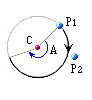
Arc by Center and 2 points
|
Arc End Point: Assign the method of defining the end of the arc
P2: Create line elements up to the fictitious line connecting P2 and the center of the arc center
Angle: Enter the angle of the arc within which new elements will be created
The arc is created in the direction along the curve from P1 to P2 following the shorter distance. To create the arc in the longer arc direction, Angle is used to control the direction.
Note |
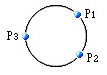
Circle by 3 points
|
The circle is created in the direction determined by the sequential direction of P1, P2 & P3. |
Circle by Center and 2 points
|
|

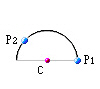
Ellipse by Center and 2 points
|
Semi-Ellipse: To form a semi-ellipse
|
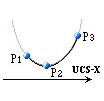
Parabolic Curve by 3 points
|
Divide by Equal distance on
Curve: Divide the curve into equal segments
Projecting line: Divide the curve into equal segments along the length projected on UCS (GCS) x-axis
|
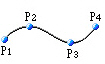
Cubic Curve by 4 points
|
|
Note
The Local Directions of the line elements are defined by the sequential
direction of P1, P2 & P3.
Intersect
Node: when existing nodes are on the line elements being created, the elements are divided at the existing nodes.
Element: when newly created line elements intersect with existing line elements, nodes are automatically created and the line elements are divided at the intersection points.