Building Generation
Copy existing nodes and elements of given conditions to create structural frames of high-rise buildings.
From the Main Menu select Structure > Building > Control Data > Building Generation.
Shortcut key : [Ctrl]+G
 Start Node Number
Assign a starting node number of
new nodes that will be created with new elements in the Model
Window. This number is automatically set to the largest node number
currently used +1. Click  and select an option to enter a desired number.
Start Element Number
Assign a starting element number
of the newly created elements. This number is automatically set
to the largest element number currently used +1. Click and select
an option to enter a desired number.
Building Generation
Number of Copies : Number of stories to be copied
Distance (Global Z) : Copy distance in GCS Z-direction (Story height)
Material Inc. : Increment for Material property numbers to be created
Column Section Inc. : Increment for Column Section numbers to be created
Beam Section Inc. : Increment for Beam Section numbers to be created
Brace Section Inc. : Increment for Brace Section numbers to be created
Wall Section Inc. : Increment for Wall Thickness numbers to be created
Operation
 : Enter or add Z-direction copy conditions
 : Modify previously entered copy conditions
 : Delete previously entered copy conditions

The copy conditions entered in the above Building Generation are displayed by stories in a table.
Note
When the increments for material properties or section numbers
are widely varied, specify the copy conditions considering only
the story heights first. Then, reflect the increments for material
properties or section numbers in .
Copy
Node Attributes
Select the option whether to copy the nodal attributes during the
copy process (nodal boundary conditions, nodal concentrated loads,
etc.). Click to copy
attributes selectively.
Copy
Element Attributes
Select the option whether to copy the element attributes during
the copy process (element boundary conditions, element loads,
etc.). Click to copy
attributes selectively.
Copy
Building Attributes
Select the option whether to copy the building attributes during
the copy process (Rigid
Link and Assign
Floor Loads, etc.). Click
to copy attributes selectively.

Enter the merging tolerance in terms of a distance for merging newly created nodes and existing nodes.
Note
Application example for Building Generation
First, create a reference frame, which will become a basis for subsequent copying operation.
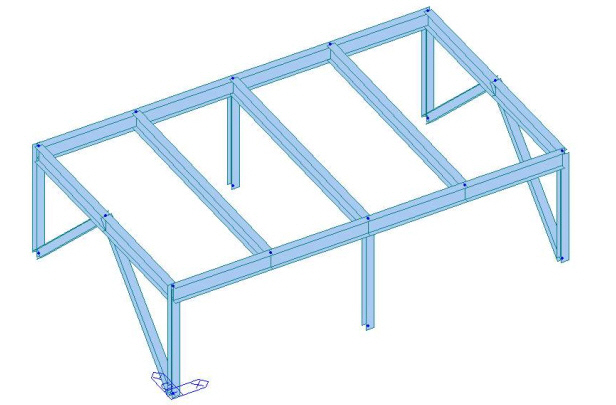
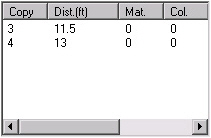
Using the copy conditions of Building Generation, generate copy conditions considering only the story heights.
'3'
in Number of Copies, '11.5' in Distance +
'4'
in Number of Copies, '13' in Distance +
Copy condition table is created as follows :
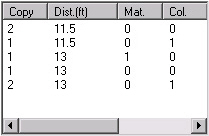
Click
to reflect
the increments for material properties and section numbers
by stories in the copy conditions. Increments for section
numbers by different types of members (column, beam, brace,
wall) can be separately selected.
Click
 ,
then the material property and section increments are
reflected in the copy condition table below.
,
then the material property and section increments are
reflected in the copy condition table below.
Select the elements to be copied and click
 to create a building model as shown in the figure.
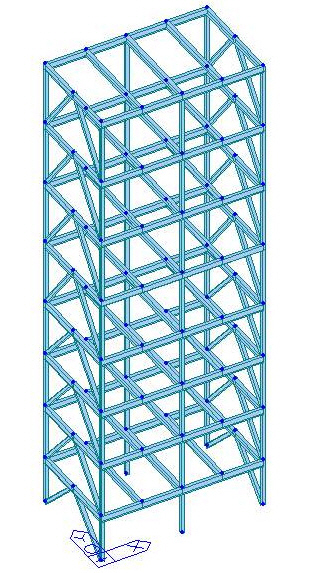
The Application example of the Install CD explains the procedure of using Building Generation to create Steel (15 stories) and RC (12 stories) structures.
Building Generation can be applied to complicated structures whereby, story heights, materials, sections and thicknesses vary from floor to floor. Only one copy operation is all that is required.