Hydrostatic Pressure Loads
Enter the hydrostatic pressure (fluid potential) loads at the edges or faces of Plate, Plane Stress, Plane Strain or Solid Elements.
The hydrostatic pressure loads are calculated at each corner node of the elements. The point pressure is obtained by multiplying the distance from the given surface of the fluid by the density of the fluid.
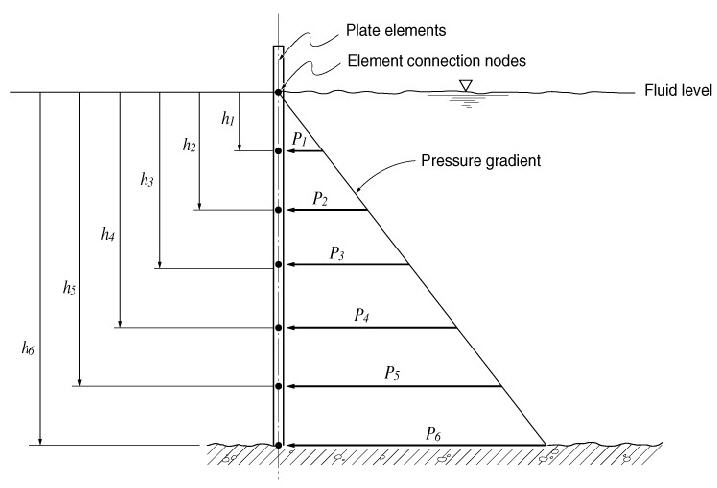
Pressure loads due to the fluid potential at the connection nodes of plate elements
From the Main Menu select Load > Static Load > Pressure Load > Hydrostatic Pressure Loads.
|
 to the right to enter additional load cases and modify
or delete existing load cases.
to the right to enter additional load cases and modify
or delete existing load cases.
Plane Strain: plane strain element
Axisymmetric: axisymmetric element
Pressure Edge: Refer to the figure to select the edge numbers to be loaded.
8 Nodes Solid: 8 node solid element
6 Nodes Solid: 6 node solid element
4 Nodes Solid: 4 node solid element
Pressure Face: Refer to the figure to select the face number to be loaded.
Direction
Normal: Pressure loads applied normally to the face of the solid elements
Global X: Pressure loads applied in GCS X-direction
Global Y: Pressure loads applied in GCS Y-direction
Global Z: Pressure loads applied in GCS Z-direction
Projection
When the pressure loads are applied to plate or solid elements in the direction of 'Global X, Y or Z', select whether or not to
project the loads on a plane perpendicular to the loading direction.
Yes: project the pressure loads
No: the pressure loads are applied along the entire face
 Loads
Loads
The application conditions for hydrostatic pressure loads are as follows:
Hydrostatic Pressure = P0 + g(H - h)
Where, H > h (position of the element connection nodes)
Gradient Direction: Assign the gradient direction of the hydraulic potential - increasing direction from the fluid surface
Global ( -X )
Global ( -Y )
Global ( -Z )
 Reference Level(H): Reference
level for the pressure due to the hydraulic potential of fluids
(enter with the mouse or keyboard)
Reference Level(H): Reference
level for the pressure due to the hydraulic potential of fluids
(enter with the mouse or keyboard)
Constant Intensity(P0): Pressure acting on the fluid surface
Gradient Intensity(g): Specific weight of fluid
Lateral soil pressure with or without ground water pressure can be applied using this functionality.
Note
When lateral soil pressure is entered as Hydrostatic Pressure Loads,
Element Type must be Plate, and the structure must be divided
into a reasonable number of elements to properly reflect its flexural
behavior.
Direction represents the direction of acting force. Gradient Direction is generally selected in the direction of gravity (Global-Z).
Constant Intensity (Po) represents surcharge (soil overburden), which is subject to soil pressure coefficient. Gradient Intensity (g) is also obtained by applying the soil pressure coefficient. Depending on the presence of ground water, the following is entered:
1) Only soil is present without ground water
Soil: g = soil pressure coefficient * unit density of soil
2) To consider ground water (separately enter values for soil and water)
Soil: g = soil pressure coefficient * unit density of soil under water
Water: g = unit density of water
(In case of water, Reference level (H) locates the level of ground water.)