Graphic Editor
MIDAS Graphic Editor linked to MIDAS Family Program is a vector-based graphic editor, which is readily used to edit and print various types of Graphic files. Graphic Editor can freely add or edit all types of statements in BMP or EMF (enhanced metafile) files created by MIDAS/Gen. It enables the user to prepare refined presentation documents. In addition, Graphic Editor can be used analogous to the drawing functions of MS-PowerPoint and Word.
Drawing
Similar to the majority of graphic editors, MIDAS Graphic editor
supports a variety of drawing functions.
- Straight line
- Polygon
- Rectangle
- Curve
- Closed curve
- Ellipse (Circle)
- Character
- Bitmap image
- Windows Enhanced Metafile (EMF) image
Editing
MIDAS Graphic editor provides a variety of editing functions to
manipulate drawn images and figures.
- Select
- Move
- Rotate
- Change Size
- Point Edit
- Align
- Cut, Copy, Paste
- Grouping/ Ungrouping
- Stacking Order, Z-Order
From the Main Menu select Tools > Editor > Graphic Editor.
Shortcut key : [Ctrl]+[F6]
Windows
Menu : Execute .jpg) GEdit.exe
in the midas Gen program folder.
GEdit.exe
in the midas Gen program folder.
 Drawing
Function |
Directions |
Draw Straight Line |
Click
|
Draw Continuous Poly Line |
Click
|
Draw Polygon |
Click
|
Draw Rectangle |
Click
|
Draw Continuous Poly Curve |
Click
|
Draw Closed Curve |
Click
|
Draw Ellipse |
Click
|
Insert Text |
Click
|
Insert Image |
Click
|
 Draw Line.
Then, left-click the start point and drag the mouse to
the desired position.
Draw Line.
Then, left-click the start point and drag the mouse to
the desired position. Draw Poly
line. Then, click consecutively the points to draw connecting
lines. Double-click the last point to finish. If the mouse
is right-clicked along the way, the drawing will be cancelled.
Draw Poly
line. Then, click consecutively the points to draw connecting
lines. Double-click the last point to finish. If the mouse
is right-clicked along the way, the drawing will be cancelled. Draw Polygon.
Then, click the corners of the polygon and double-click
the last point to finish. If the mouse is right-clicked
along the way, the drawing will be cancelled.
Draw Polygon.
Then, click the corners of the polygon and double-click
the last point to finish. If the mouse is right-clicked
along the way, the drawing will be cancelled. Draw Rectangle.
Then, click the top-left corner of the rectangle and drag
the mouse to the bottom-right corner.
Draw Rectangle.
Then, click the top-left corner of the rectangle and drag
the mouse to the bottom-right corner. Draw Poly
Curve. Then, click the control points of the curve and
double-click the last point. A single curve is formed
by the end points, which passes through two intermediate
control points. If the mouse is right-clicked along the
way, the drawing will be cancelled.
Draw Poly
Curve. Then, click the control points of the curve and
double-click the last point. A single curve is formed
by the end points, which passes through two intermediate
control points. If the mouse is right-clicked along the
way, the drawing will be cancelled. Draw Closed
Curve. Then, click the control points of the closed curve
and double-click the last point. A single curve is formed
by the end points, which passes through two intermediate
control points. If the mouse is right-clicked along the
way, the drawing will be cancelled. The surface of the
closed curve can be filled in with a desired color.
Draw Closed
Curve. Then, click the control points of the closed curve
and double-click the last point. A single curve is formed
by the end points, which passes through two intermediate
control points. If the mouse is right-clicked along the
way, the drawing will be cancelled. The surface of the
closed curve can be filled in with a desired color. Draw Ellipse.
Then, click the top-left corner of the rectangle on the
circumference of the ellipse and drag the mouse to the
bottom-right corner.
Draw Ellipse.
Then, click the top-left corner of the rectangle on the
circumference of the ellipse and drag the mouse to the
bottom-right corner. Insert Text.
Then, click the desired position with the mouse. "TEXT"
character appears. Double-click the character and type
in the text. Right-click the mouse and select [Properties...]
from the menu to setup the font and borders.
Insert Text.
Then, click the desired position with the mouse. "TEXT"
character appears. Double-click the character and type
in the text. Right-click the mouse and select [Properties...]
from the menu to setup the font and borders. Insert Image.
Then the Open File dialog box appears. Select the image
file and click the insert position. Once the image is
inserted, the size and position can be adjusted.
Insert Image.
Then the Open File dialog box appears. Select the image
file and click the insert position. Once the image is
inserted, the size and position can be adjusted.
Note
When a particular element is to be drawn to the same proportion
or orthogonally, hold down [Shift] and draw the element.
Editing
Select
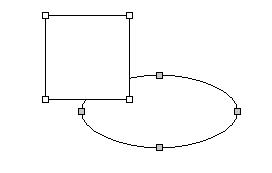
Graphic Editor is basically in a Select mode. Click  to switch
to the Select mode if not already in the mode. In the Select mode,
click the object to select. When several objects are to be selected,
left-click and drag the mouse. Or, hold down [Ctrl] and click
each object. The last selected object becomes the 'reference'
object and is distinguished by gray selection handles. The 'reference'
object is used as reference for the Align functions. If the 'reference'
object is to be changed, hold down [Ctrl] and click the new reference
object. If a particular object is not to be selected among several
objects, press [Shift] and click the relevant object.
to switch
to the Select mode if not already in the mode. In the Select mode,
click the object to select. When several objects are to be selected,
left-click and drag the mouse. Or, hold down [Ctrl] and click
each object. The last selected object becomes the 'reference'
object and is distinguished by gray selection handles. The 'reference'
object is used as reference for the Align functions. If the 'reference'
object is to be changed, hold down [Ctrl] and click the new reference
object. If a particular object is not to be selected among several
objects, press [Shift] and click the relevant object.
Move
If the cursor is moved to the center part of the object selected
in the Select mode, the cursor switches to the Move mode  .
At this time, left-click and drag the mouse to move the object
to a desired position. If the Grid Snap option is active, the
motion follows the snapped grids.
.
At this time, left-click and drag the mouse to move the object
to a desired position. If the Grid Snap option is active, the
motion follows the snapped grids.
If an object is to be moved precisely, it may be effective to use the motion icons. Clicking a relevant icon once moves the object by 1 unit. Clicking an icon while holding down [Shift] moves the object by 5 units.

Align
Objects can be easily arranged by the Align functions. If several
objects are selected, the 'reference' object with gray handles
becomes the aligning reference.
|
Align relative to top |
|
Align relative to horizontal center |
|
Align relative to bottom |
|
Align relative to left |
|
Align relative to vertical center |
|
Align relative to right |


The regular spacing icons arrange the selected objects at a regular spacing.
|
Equal horizontal spacing |
|
Equal vertical spacing |


The Size Align icons fit all the selected objects to identical dimensions. If several objects are selected, the 'reference' object with gray handles becomes the fitting reference.
|
Fit horizontal size |
|
Fit vertical size |
|
Fit horizontal / vertical sizes |


Rotate
Click the Rotate icons to rotate selected object(s).
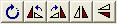
The Rotate icons feature "Free Rotation", "Rotate 90° to left", "Rotate 90° to right", "Horizontally Symmetric Rotation" and "Vertically Symmetric Rotation" functions. When "Free Rotation" is to be selected, move the cursor to the selected object then the cursor transforms into an icon. At this time, keep the mouse left-clicked and move the mouse to freely rotate the object(s).
Change
Size
To find out if the size of the selected object can be changed,
place the pointer on a handle of the object then the pointer will
transform into a double-arrow signaling that the size of the object
can be changed. The size can be changed left/rightward, vertically
or left/right/vertically depending on the selected handle.
Grouping/Ungrouping
Select several objects and click  (Grouping) to combine the selected objects into one object.
When the grouping is to be released,
click  (Ungrouping).
Based on the order of Grouping, Ungrouping starts one-by-one from
the last Grouping in a reverse order.
(Ungrouping).
Based on the order of Grouping, Ungrouping starts one-by-one from
the last Grouping in a reverse order.
Grouping/Ungrouping can also be accessed from the Context Menu displayed by right-clicking the mouse on the object(s).
Stacking
Order
Overlapping objects are displayed in a particular stacking order,
called Z-order. The object with the highest order positions itself
at the top of stack. Lower order objects are underlain by higher
order objects. This order is basically established by the order
in which the objects were created. To change the order, select
the objects and click the Stacking Order icons.

The Stacking Order functions are "To the top", "To the bottom", "One-step forward" and "One-step backward". Stacking Order can also be accessed from the Context Menu displayed by right-clicking the mouse on the object.
Point
Edit
Click  Point Edit to
switch to the Point Edit mode. Each handle moves to the points
constituting the object.
Point Edit to
switch to the Point Edit mode. Each handle moves to the points
constituting the object.
Point
Move
In the Point Edit mode, move the mouse to a handle then the cursor
shape transforms to signal that motion is allowed. Left-click
and drag the mouse to move the point constituting the object.
Point
Insert
If [Ctrl] is pressed with the cursor between the points, the cursor
transforms into the Insert state. Then, left-click the mouse to
insert a point. This is applicable only for objects, which can
be constituted by an unlimited number of points, such as a curve
and a continuous line.
Point
Delete
If [Ctrl] is pressed on a point, the cursor transforms into an
'X'-shape signaling the Delete state, then left-click the mouse
to delete the point. This is applicable only for objects, which
can be constituted by an unlimited number of points, such as a
curve and a continuous line.
Change
Component Properties
Select the object for which properties are to be changed and click
 (Change Component Properties). Or, right-click
on the object and select [Properties...] in the context menu to
display the Change Component Properties dialog box. Then, setup
the detailed properties related to the object. The displayed properties
(color and width of line, color of surface, etc.) can then be
selected or changed.
(Change Component Properties). Or, right-click
on the object and select [Properties...] in the context menu to
display the Change Component Properties dialog box. Then, setup
the detailed properties related to the object. The displayed properties
(color and width of line, color of surface, etc.) can then be
selected or changed.
Other Functions
Undo/Redo
Undo/Redo restores / re-executes one-by-one from the most recent
change in Graphic Editor.
Grid View and Grid Snap

Click the Grid View icon to display or hide the grid. Click Grid Snap to snap all the created nodes to contiguous grid points.
Zoom, Fit to Window, Fit to Range

Zoom
Click Zoom to magnify a part of the window. When the cursor transforms
into a magnifying glass, left-click to magnify the drawing by
a certain proportion. If an area is assigned by left-clicking
and dragging the mouse, the area is magnified to fit the window.
Fit
to Window
Magnify/reduce all the current objects in the window so that they
are viewed as large as possible without being cut.
Fit
to Range
Magnify/reduce the currently selected objects so that they are
viewed as large as possible without being cut.
Functions related to File
 New
New
Create a new blank drawing.
 Open
Open
Open a drawing file. MGF (MIDAS Graphic Format), BMP and EMF formats
can be opened.
 Save
Save
Save the created drawing in a file. The formats that can be saved
are MGF (MIDAS Graphic Format), BMP, EMF.
Printer
Setup
Setup the printer, margins, type and direction of document etc.
Print
Preview
Preview the printing form prior to hard-printing.
 Print
Print
Hard-print the drawing.