Display Setting

Display settings of GTS
can be controlled in View
>Display Option of the Main Menu.( )
)
|
|
|
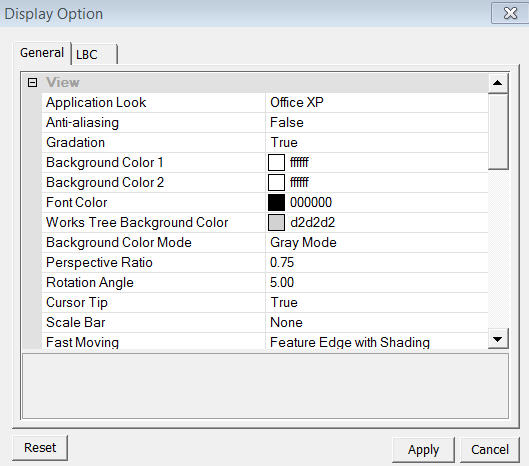
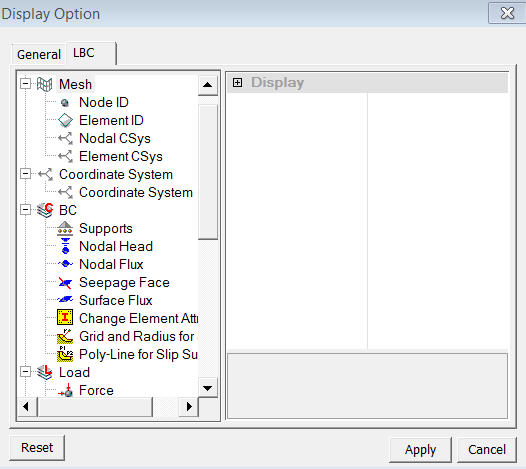
Display Options in General tab are as follows:
View
Application Look
Changes the framework style. Customizes the working environment of the program.Anti-aliasing
Turning on/off the Anti-aliasing effect will draw a more distinguishable boundary of an object during the OpenGL graphic process.Gradation
Gradation effect can be used at the background of the Work Window.Background Color 1, Background 2
They specify the background color of the Work Window. When Gradation is on, Background Color 1 is set to the upper color and Background Color 2 is set to the bottom one. When Gradation is off, Background Color 1 is applied as a unicolor background.Works Tree Background Color
Specifies the background color of the Works Tree.Perspective Ratio
Specifies the Perspective Ratio of three dimensional graphic presentations.Cursor Tip
Turning on/off the Cursor Tip displays the type of selecting entity at the mouse cursor.
Grid
Grid Color
Specifies the grid color.Width
Specifies the thickness of the grid line.Line Type
Specifies the type of the grid line.Shape Color
Specifies the color of geometric shape by its type. The updated color(s) will be applied to newly created entities.
Mesh
Display Mode
Specifies the default display mode of newly created Mesh Set.Node Display
Determines whether or not to display the Node when it is first created.
Display Options in Label are as follows:
Proportional Size
Determines whether the size of symbol is proportional to the magnitude of object such as load.
Symbol Size
Specifies the size of symbol. Any real number is valid as symbol size, hence even fractional numbers can be entered.
Symbol Color 1, Symbol Color 2, Symbol Color 3
Specify the color of a symbol. For scalar type load and boundary condition (LBC), only Symbol Color 1 will be used. For vector type LBC, three colors will be applied for each component.
Display Value
Determines whether to display the value of LBC or not.
Texture Mapping Font
Determines whether to use Texture Mapping Font for LBC value display. Texture Mapping Font has faster graphic display, but the user cannot specify the text size.
Text Size
Specify the text size of LBC.
Text Color
Specify the text color of LBC.