Property Window: Slice Plane

Function
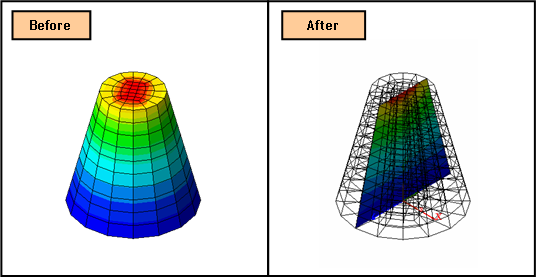
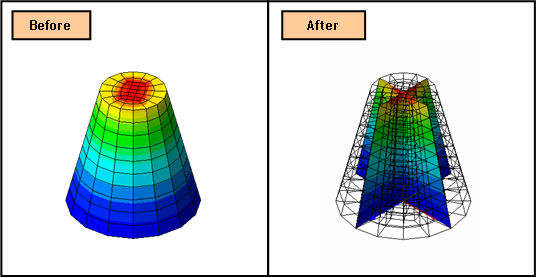
Specify detail options for Slice Plane. Slice Plane displays results at sections specified by the user.
Call
Property Window > Slice Plane ...
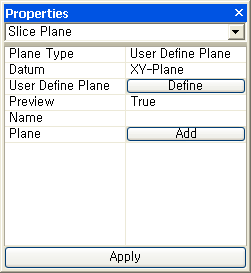
<Slice Plane>
Plane Type
Specify a type of plane to be used in Slice Plane.
Datum (Example)
Specify Slice Plane using a pre-defined Datum Plane which is selected in 'Datum.'
User Define Plane (Example)
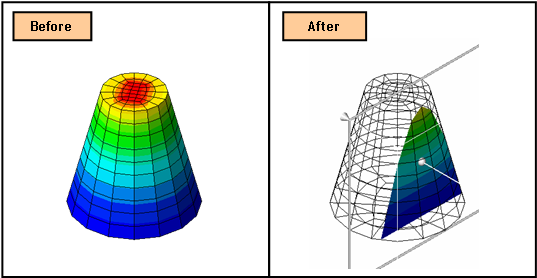
Define a Slice Plane directly by entering values in the Define Plane dialog box or by using the mouse in the Work Window.
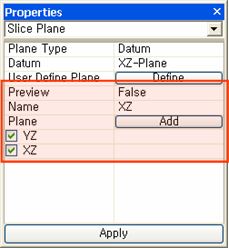
Preview (Example)
True
It displays the defined Slice Plane when user click the Apply button in the Property Window or the Plot button in the Define Plane dialog box.
False
It displays only registered Slice Planes by clicking the Add button.
Name
Enter the name of defined Slice Plane.
Plane
Shows the list of registered Slice Planes by clicking the Add button.
Notes
<How to utilize User Define Plane>
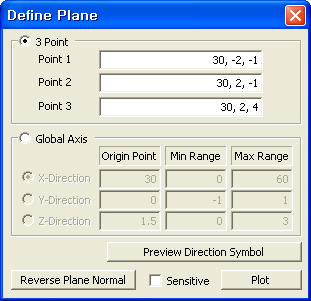
<Define Plane>
How to use in the Work Window
To move parallel to the Plane
1. Click the left button of the mouse at any location in the grey plane which appears in the Work Window..
2. Drag the mouse pointer left to right, and the Slice Plane moves parallel to the plane (same as the direction of arrow).
To rotate about the rotating center
1. Click at the head or tail of the arrow which appears in the Work Window.
2. Drag the mouse pointer left to right, and the Slice Plane rotates about the rotating center (the grey dot in the plane).
To move the rotating center
1. Click the wheel (middle) button of the mouse at the any location in the grey plane.
2. Drag the mouse pointer left to right, and the rotating center changes as well as the Slice Plane (parallel to the plane).
To resize the grey plane
1. Click the right button of the mouse at the any location in the grey plane.
2. Drag the mouse pointer left to right, and the size of the grey plane changes.
Once the slice plane is located as desired, click on the plot button in the Define Plane dialog box or the apply button in the Property Window
How to input values in the Define Plane dialog box
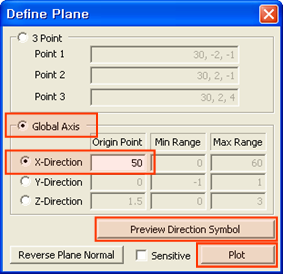
Global Axis
Define a Slice Plane by entering value for the Global Axis.
X Direction
Enter a value in the Global X-direction to create a plane which is perpendicular to the axis.
Y Direction
Enter a value in the Global Y-direction to create a plane which is perpendicular to the axis.
Z Direction
Enter a value in the Global Z-direction to create a plane which is perpendicular to the axis.
Preview Direction Symbol
Preview the defined plane on the screen.
Reverse Plane Normal
Reveres the direction of plane normal. Although it does not a significant meaning in the Slice Plane definition, the contouring part of the Slice Plane is determined the normal direction.
Sensitive
It immediately updates the figure on the screen as we define the plane.