Wall Design
| ||||||||||||||
|
| ||||||||||||||
|
| ||||||||||||||
|
Perform the flexural design results for wall elements in contour. | ||||||||||||||
|
| ||||||||||||||
|
| ||||||||||||||
|
| ||||||||||||||
|
From the Main Menu select Design > Meshed Slab/Wall Design > Wall Design. | ||||||||||||||
|
| ||||||||||||||
|
| ||||||||||||||
|
|
 New for Gen 2010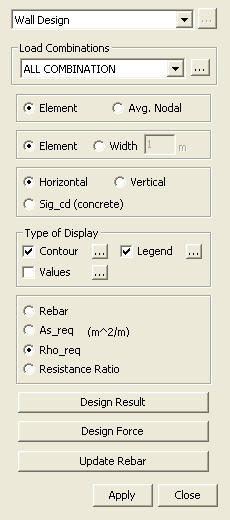
 Load Combinations
 to
the right to enter new or modify existing load combinations. (Refer to
"Static Load Cases / Combinations")
to
the right to enter new or modify existing load combinations. (Refer to
"Static Load Cases / Combinations") : Produce the flexural
design results of wall elements in a text format.
: Produce the flexural
design results of wall elements in a text format. : Produce the flexural
design results of wall elements in a tabular format.
: Produce the flexural
design results of wall elements in a tabular format.  : Update the rebar quantity
for each wall element. The updated rebar data is used for strength verification.
: Update the rebar quantity
for each wall element. The updated rebar data is used for strength verification.
|
Contour |
Display the slab flexural design results of the model in contour. |
|
|
Ranges: Define the contour ranges.
Note Number
of Colors: Assign the number of colors
to be included in the contour (select among 6, 12, 18, 24 colors) Colors: Assign or control the colors of the displacement contour.
Color Table: Assign the type of Colors.
Reverse Contour: Check on to reverse the sequence of color variation in the contour.
Contour Line: Assign the boundary line color of the contour
Element
Edge: Assign the color of element edges while displaying the contour Contour Options: Specify options for contour representation
Contour Fill
Gradient
Fill: Display color gradient (shading) in the contour.
Draw Contour
Line Only
Mono line: Display the boundaries of the contour in a mono color.
Contour
Annotation
Spacing: Display the spacing for the legnd or annotation.
Coarse Contour(faster) (for large plate or solid
model)
Extrude The option is not concurrently applicable with the Deformed Shape option. Similarly, the option cannot be concurrently applied to the cases where the Hidden option is used to display plate element thicknesses or the Both option is used to represent Top & Bottom member forces (stresses). |

 : Assign the color distribution
range of contour. Using the function, specific colors for specific ranges
can be assigned.
: Assign the color distribution
range of contour. Using the function, specific colors for specific ranges
can be assigned. : Control the colors by zones
in the contour.
: Control the colors by zones
in the contour.|
Values |
Display the slab flexural design results
in numerical values. |
|
|
Decimal
Points: Assign decimal points for the displayed numbers Min &
Max: Display the maximum and minimum values Set Orientation: Display orientation of numerical values
Note |

|
Legend |
Display various references related to analysis results to the right or left of the working window. |
|
|
Legend Position: Position of the legend in the display window
Rank Value Type: Specify a type of values in the Legend and the number of decimal points. |