Task Pane
Display work procedure, required input items and optional input items for each analysis case. This helps the user to enter the analysis data easily. Task Pane displays work procedure for advanced analysis functions and description on input items so as to enable the user to work more easily. In addition, Task Pane data can be saved in html format in the User Folder, so that the user can directly write or add the required input items for analysis.
From the Main Menu select Tools > Customize > Task Pane.
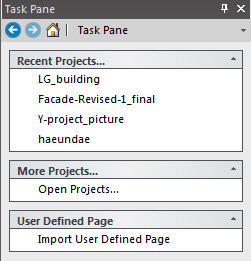
Task Pane is composed of two items a Task Pane displaying the recent project file list and Analysis displaying checklist for each analysis.
Task Pane
|
Recent Projects: Display the recent project file list and open the selected file. Up to 10 Files can be listed and the number of files to be displayed can be adjusted from 'Recently Used Project List' in Tools> Preferences.
More Projects:Identical to File > Open Project
User Defined Page:Click 'Import User Defined Page' and open '*.tpd' to construct a user-defined Task Pane. |

 Move to
an item of interest (Task Pane or Analysis).
Move to
an item of interest (Task Pane or Analysis). :Move the main item (Task Pane).
Analysis
|
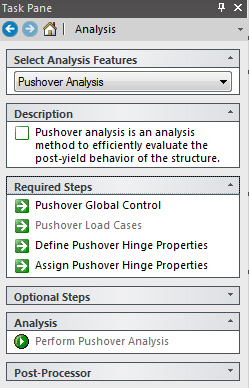
Select Analysis Features: Select a type of analysis to perform. V.700 provides 4 types of advanced analysis features such as Pushover Analysis, Nonlinear Time History Analysis, Time History Analysis and Material Nonlinear Analysis.
Description: Enter a short description of the selected analysis function.
Required Steps: Display the required steps for analysis. Once a step is selected, the relevant dialog box is invoked. For details on the input items, refer to the relevant section in the On-line manual.
Optional Steps: Display the optional steps for analysis. If a step is selected, the relevant dialog box is invoked. For details on the input items, refer to the relevant section in the On-line manual.
Analysis: Perform analysis.
Post-Processor: Display relevant analysis result items. If an item is selected, the relevant dialog box is invoked. Before the analysis is performed, the relevant item remains inactive.
|
User Defined Task Pane
|
Using the User Defined Task Pane, the user can create a Task Pane manually. Once a Task Pane is created for a frequently used analysis feature, it can be used later for similar type of work. Thus, the work time can be reduced since it relieves the user from pointing the cursor and clicking on every single menu.
Click 'Import User Defined Page' under 'User Defined Page' of Task Pane and open '*.tpd' defined by the user. Then, the Task Pane that the user has defined will be displayed on the User Defined Page.
*.TPD file
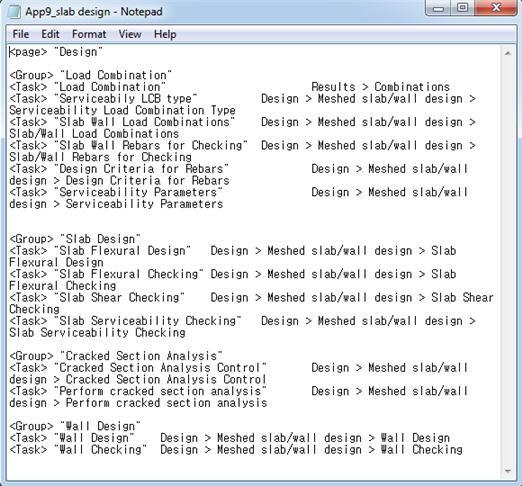
TPD file can be edited using Notepad or text editor and it will retain the following form:
PAGE: Name of the user defined page
GROUP: Unit having Task and Label
TASK: Individual item which will be linked to the menu command by clicking it
LABEL: Short description which is not linked to the menu command
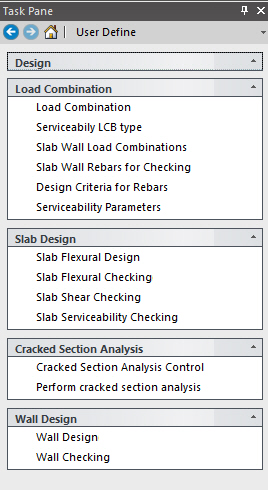
The figure below shows the parts of a Task Pane to which each item of the TPD file will correspond.
Note Prefix and suffix <> to each item (Page, Group, Task, Label). A single line cannot include more than two items. It is not case sensitive. Prefix and suffix to the name of each item. To link the Task items to the menus, type the routes of the menus next to the Task items. The routes of menus should be entered such that the name and the order of the menu is the same as shown in the Main Menu directory. In case of menu names followed by, can be omitted. Menu name is not case sensitive. The following is an example of a TPD file to be used as the User Defined Task Pane.
|