PDS Export

Export midas nGen file as PDS neutral file.


ΆΖ Call

[Interface] Tab > [3D CAD Program] > [PDS] > [Export]


ΆΖ Detail Description

PDS_export.png

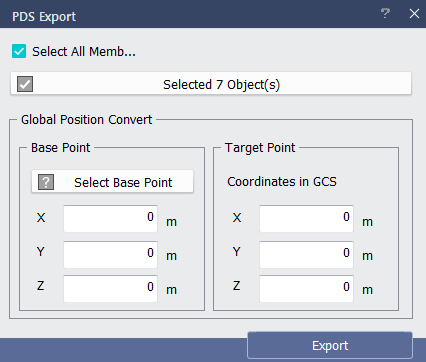
< PDS Export Dialog >

Define the base point midas nGen where the target point of PDS to be exported.


Blue_Square.gifBase Point : Define base point of midas nGen by selecting directly from the model view or input the coordinates manually.

Blue_Square.gifTarget Point : Define the target point of PDS file.


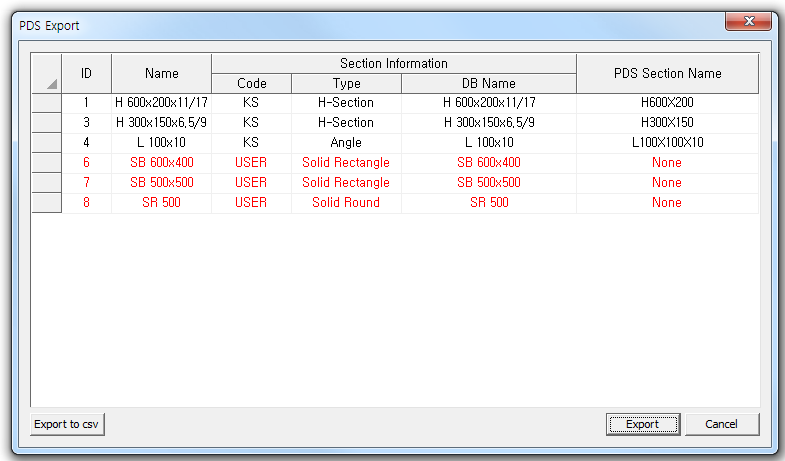
Click 'export' to access the dialog where the section properties of exported file can be edited.

 PDS_export-2.png

< Export Section Mapping Dialog >

Table

Blue_Square.gifName : Section Name defined in midas nGen.

Blue_Square.gifSection Information

Black_Square.gifCode : Section Code defined in midas nGen file. If not defined, it is expressed as USER.

Black_Square.gifType : Section Type defined in midas nGen file.

Black_Square.gifDB Name : Section DB Name defined in midas nGen file.

Blue_Square.gifPDS Section Name : Define Section Name to be exported to PDS. It is possible to select cell and modify data.

Other Functions

Blue_Square.gifExport to csv : Export the information in Import Section Mapping dialog to excel file(*.CSV).

Blue_Square.gifExport : After modification, export PDS neutral file. When 'Export' is finished, complete message is outputted in Message window.

Blue_Square.gifCancel : Cancel export

NOTE.png1. For those section DB only present in midas nGen, it will be outputted as 'None' in red color for PDS Section Name. In this case, section will not be exported. Therefore it is necessary to modify section which is also present in PDS.

NOTE.png2. Method to check the existence of section DB : Program installed folder C: drive > Program file > midas > Plant MODS > midas Plant > Convert > Export > DB > Excel file.


Top_Button.gif