Modify Node
To modify node(s) in an Analysis model.
Applicable Modules:
Ground
|
Slope |
Soft Ground |
Foundation |
Seepage |
Dynamic |


From
the Main
Menu, select Model
> Node > Modify Node 
From the Command Line, type 'ModifyNode' or 'MDN'
Select Node(s)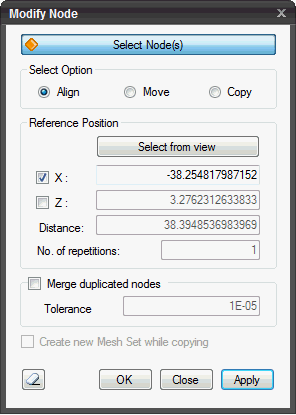
Select node(s) to be transformed.
Select Option
Align
Align the selected nodes with respect to either X-/Z- reference coordinate.
Move
Move the selected nodes parallel to a vector drawn from Pick Point 1 to Pick Point 2.
Copy
Copy the selected nodes parallel to a vector drawn from Pick Point 1 to Pick Point 2.
Reference Position
To align the selected nodes with respect to either X-/Z- reference coordinate, a value for chosen axis need to be provided.
Input location in view
To pick a reference node from the nodes displayed in the Works Window and using either its X/Z coordinate as a reference for alignment.
Pick Point
Choose a reference node.
X
By
default, the X coordinate is checked on  for alignment. If 'Input location in view' is chosen, the X coordinate
of the reference node is updated automatically. Additionally,
a value on X-axis can be manually entered.
for alignment. If 'Input location in view' is chosen, the X coordinate
of the reference node is updated automatically. Additionally,
a value on X-axis can be manually entered.
Z
Check on Z to align nodes along the Z-axis. If
'Input location in view' is chosen, the Z coordinate of the reference
node is updated automatically. Additionally, a value on Z-axis
can be manually entered.
Translation
Input location in view
To pick a reference node from the nodes displayed in the Works Window and using either its X/Z coordinate as a reference for alignment.
Pick Point 1
Choose first reference node.
Pick Point 2
Choose second reference node.
Distance
The distance represents the magnitude of vector drawn from Pick Point 1 to Pick Point 2.
No. of repetitions
Enter the number of times Move/Copy has to be repeated.
Merge duplicated nodes
Check on to merge the duplicated nodes which
fall within the specified Tolerance value.
Tolerance
Enter the Tolerance value below which adjacent nodes will be merged.
Create new Mesh Set while copying
Create new Mesh Set when nodes are copied. The attribute of new Mesh Sets is the same as that of original Mesh Set.
Click
 to reset
the menu.
to reset
the menu.
Click  to move the node. The window will close automatically.
Click  to close the window or press the ESC key to close the dialog
box.
to close the window or press the ESC key to close the dialog
box.
Click  to move the node. After the nodes are moved, the work process
will switch to Select Nodes.
to move the node. After the nodes are moved, the work process
will switch to Select Nodes.