The construction stage auto
set function can be activated by using the following steps:
1. Adding
the construction stage set after finishing modeling registers
the added construction stage set on the worktree, as shown
below.
2.
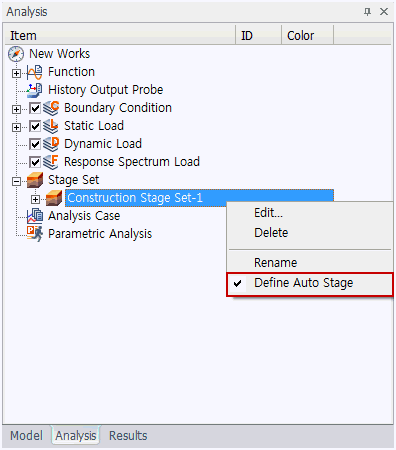
Check the [Define Auto Stage] option by right mouse clicking
on the registered construction stage set. This option
activates the Construction stage > Auto set on the
ribbon menu that allows for the specification of construction
stages on the selected construction stage set.
 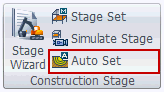
3. Click the [Auto Set] icon
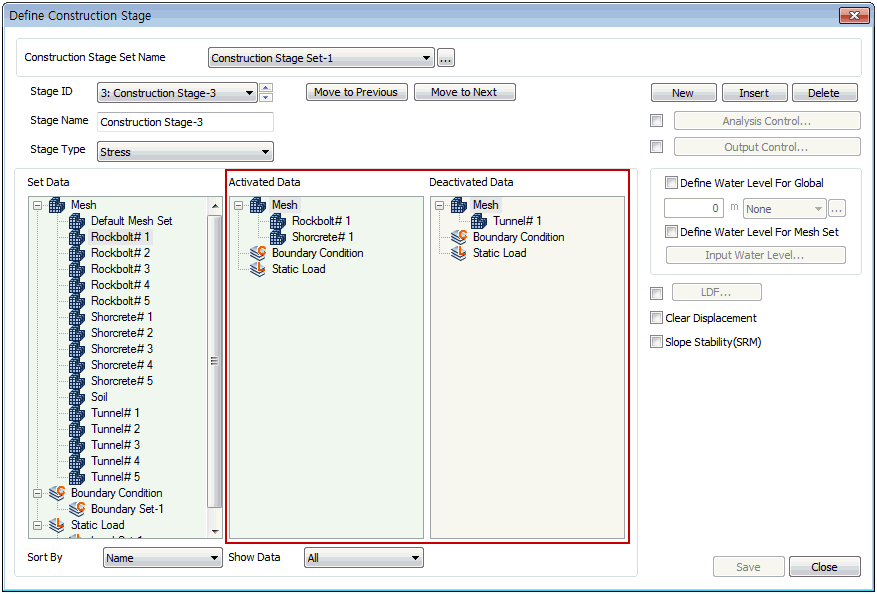
to automatically register the displayed meshes, boundary
conditions, load conditions on the activated data column
and the un-displayed (not checked) meshes, boundary conditions,
load conditions on the deactivated data column. In other
words, set the show/hide model information for each composing
stage and select [Auto Set] to automatically set the construction
stage with reference to the currently shown information.
The created stages can be checked on the worktree.
Because the concept of construction
stages is cumulative, the program compares the activated/deactivated
model information in the previous stage and only adds/deletes
the changed information. Hence, it is recommended that
the creation be done in stages, after the displayed model
information is returned to its initial in-situ state.

The auto set
function generates construction stages using the work
environment displayed on the screen. Hence, to specify
the individual options (LDF setting, clear displacement
etc.) for each stage, use the Construction stage set specification
menu to check the options for each stage. |


 Automatically
generate construction stages using the mesh, boundary
condition, load that are viewed on the current model screen.
Automatically
generate construction stages using the mesh, boundary
condition, load that are viewed on the current model screen.
