|
 Clipping Plane Clipping Plane
Geometric shapes can be cut by a specified plane direction and the section can be viewed. Necessary sections can be saved by pressing the [Add] button. Clicking the icon shows the clipped section.
This function can be used to understand the interior shape of the geometry during pre-processing and is also useful in displaying particular cross sections during post-processing.
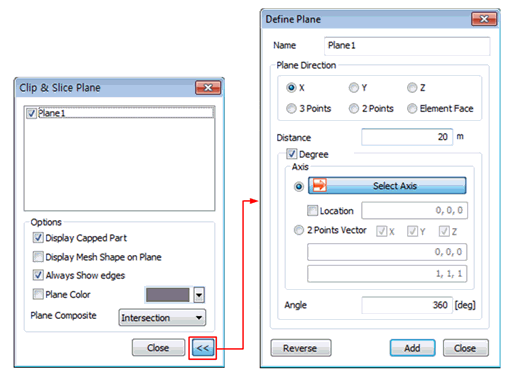
[X]: Cuts the shape in the plane normal to the X-axis. It is possible to edit the distance and move the plane.
[Y]: Cuts the shape in the plane normal to the Y-axis. It is possible to edit the distance and move the plane.
[Z]: Cuts the shape in the plane normal to the Z-axis. It is possible to edit the distance and move the plane..
[3 point definition]: Defines 3 points in the work-plane to form a cutting plane. The shape is cut in this plane.
[2 point definition]: Defines 2 points in the work-plane to form a cutting plane. The shape is cut in this plane.
[Element face]: Cuts the shape in the plane containing the element face.
Display the distance between the plane and the origin.
Cross-section can be defined by Angle from selected axis.
Show the section by changing the normal direction.
Uncheck to display the section only.
Check to display the mesh formed on the section.
Check to view the edges that make up the geometric shape.
Specify the color of the section.
[Union]
Displays all sections and shapes on the screen.
[Intersection]
Displays the intersection between sections and shapes on the screen.

 Mirror Plane Mirror Plane
Displays the symmetrical model centered on a specified plane or planes normal to the X, Y, Z axis. The distance between the original model and the symmetrical model can be adjusted.
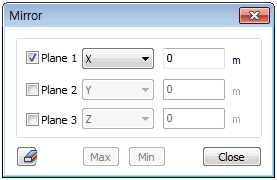 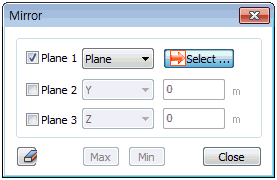
When configuring planes 1, 2, 3 individually, clicking the [Max] button displays the furthest symmetrical model with respect to the original model, while clicking the [Min] button displays the closest symmetrical model with respect to the original model.
 Iso Value Surface Iso Value Surface
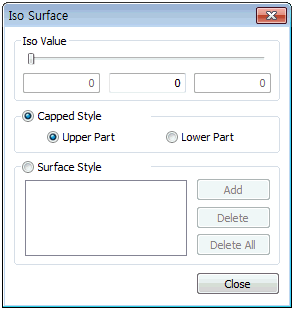
Sets a criterion for the resulting value and displays an area inside/outside of a specified value range. Checking the 'Surface Style' displays an area with the same result value as a face.
|


