|
 Zoom All Zoom All
Zoom in/out to fit the whole model on the screen.
 Zoomfit Grid Zoomfit Grid
Zoom in/out to appropriately to fit both the model and the work plane grid.
 Zoom Window Zoom Window
Zoom in to the designated rectangular area.
 Zoom in/out Zoom in/out
The user can click on the icon menu and use the left mouse button or the mouse wheel to zoom in/out.
Dragging right while holding the left mouse button expands the model; dragging left shrinks the model. Scrolling upward zooms in and scrolling downward zooms out.
Holding the Ctrl key allows the user to expand and shrink the model without having to select the zoom in/out icon.
 Rotate Rotate
Click this icon menu and dragging the left mouse button on the task window rotates the model in the drag direction.
For continued rotation, hold the Ctrl key and drag with the right mouse button.
 Rotate center Rotate center
Specify a reference point and rotates the model around that point. In the work plane, dragging with the middle mouse button held rotates the model around the specified reference point.

 Pan Pan
Move the model to desired location.
In the work plane, dragging with the left mouse button held moves the model in the drag direction.
Holding the Ctrl key and dragging with the middle mouse button held allows the user to move the model without having to ‘Pan’ icon.
 Normal Normal
Move the perspective in the normal direction of the working plane. (Perspective changed to a 2 dimensional view with the X-axis to the right and the Y-axis to the top of the screen.)
 Isometric 1 Isometric 1
Change the perspective to the isometric view. (Z-axis of the global coordinate system points up.)
 Isometric 2 Isometric 2
Change the perspective to the isometric view. (Y-axis of the global coordinate system points up.)
When importing a geometric model created in CAD, use this perspective to view the model in the same perspective as CAD.
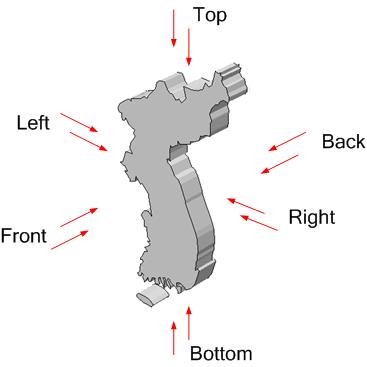
 Front Front
Change the perspective to the front view.
It is the Y, Z plane of the global coordinate system rotated 180 degrees about the Z-axis.

 Back Back
Change the perspective to the back view. It is the Y, Z plane of the global coordinate system.

 Top Top
Change the perspective to the top view.
It is the X, Y plane of the global coordinate system rotated 90 degrees about the X-axis and the Y-axis.

 Bottom Bottom
Change the perspective to the bottom view.
It is the X, Y plane of the global coordinate system rotated 90 degrees about the Y-axis and the X-axis.

 Left Left
Change the perspective to the left view.
It is the X, Z plane of the global coordinate system rotated 180 degrees about the Z-axis.

 Right Right
Change the perspective to the left view.
It is the X, Z plane of the global coordinate system.

 Display mode [Geometric] : Provides various view modes to display the model. Display mode [Geometric] : Provides various view modes to display the model.
FEA NX provides various display modes that help the user easily understand the work state and display the model as they please.
The display mode can be called up by selecting the geometric shape and clicking the right mouse button.
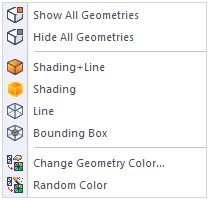
Display the geometric shape using faces and outlines.
Display the geometric shape using only faces.
Display the geometric shape using only outlines.
Display the geometry object by its bounding box than its actual shape.
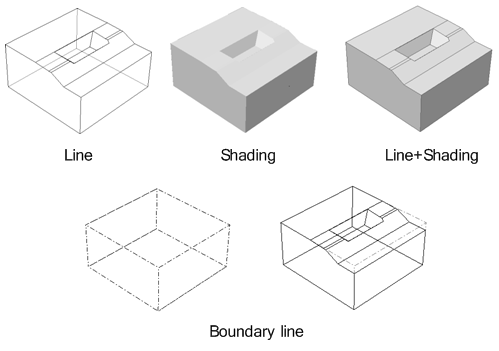
The user can change the color of the object depending on the geometric shape, mesh, material or other properties. The user can define the color of the object directly or randomly assign a color using the random color assign function.
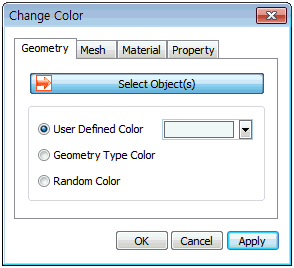 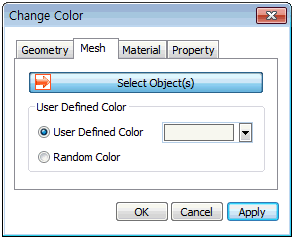

When displaying the geometric shape using the [Shading] or [Shading and line] method, the user can specify the shading transparency to display the interior of the object.
The transparency can be specified by selecting the geometric shape and clicking the right mouse button > Contents menu > Transparency.
Complex geometric shapes can be effectively represented by applying different display modes to individual geometric shapes.
|



 Display mode [Mesh]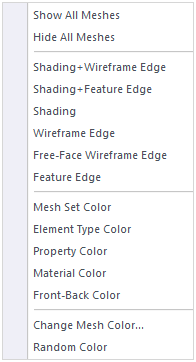
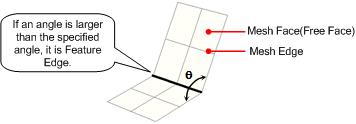

 Perspective view
 Geometry shadow
 Bounding box