|
Tunnel type
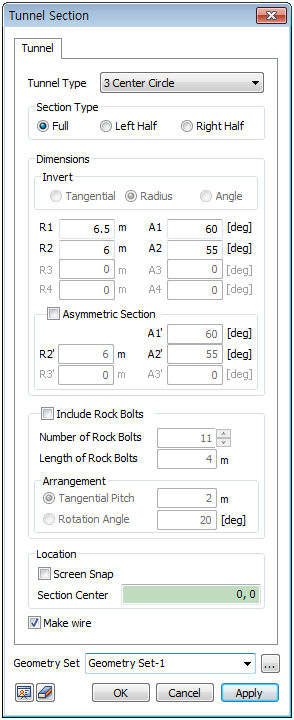
There are 4 types of tunnels: [3 Center Circle], [3 Center Circle + Invert], [5 Center Circle] and [5 Center Circle + Invert]. There are 3 types of sections: [Full], [Left Half], [Right Half].
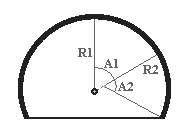 : 3 Center Circle : 3 Center Circle
Create a tunnel using 3 arcs, all with different center points and diameters.
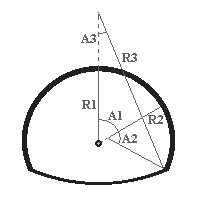 : 3 Center Circle + Invert : 3 Center Circle + Invert
Create a tunnel using 3 different arcs and an invert.
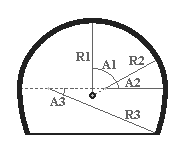 : 5 Center Circle : 5 Center Circle
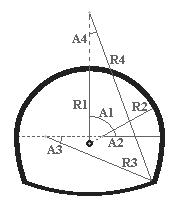
Create a tunnel using 5 arcs, all with different center points and diameters.
 : 5 Center Circle + Invert : 5 Center Circle + Invert
Create a tunnel using different 5 arcs and an invert.
Size
Input the Radius (R1~R4) and Angle (A1~A4) of the tunnel section. If the section is not horizontally symmetrical, check the axis symmetry section to create a non-symmetric tunnel shape. In this case, the Inputs A1’~A3’, R2’~R3’ represent the shape on the left half section.
Invert
This function is only active when the tunnel type is [3 center circle + invert] or [5 center circle+invert]. The invert can be drawn in an arc form when the bottom of the tunnel is not flat. The invert shape can be created with one of the following 3 methods:
1. [Tangential] : Creates an invert shape based on the Radius (R) and Angle (A) input and the 3 center circle (or 5 center circle) information.
2. [Radius] : Creates an invert shape based on the 3 center circle (or 5 center circle) information and the appropriate Angle (A) calculated by the Radius (R) input.
3. [Angle] : Creates an invert shape based on the 3 center circle (or 5 center circle) information and the appropriate Radius (R) calculated by the Angle (A) input.

Rock bolt
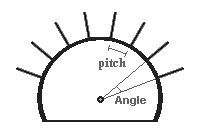
If the tunnel section contains rock bolts, check [Include Rock Bolts] to place the edges. Input the number of rock bolts and their length. The user can align the bolts by using two methods: [Tangential Pitch] or [Rotation Angle].
Location
Input the center point location of the created tunnel section.
The user can input the center point coordinates on the workplane by either checking the [Screen Snap] and using the mouse, or directly entering the coordinates.
Make wire
Create the tunnel section shape using a single wire. If the user does not check the option, it creates the tunnel section shape using multiple edges.
Geometry set
Register the created tunnel section on the Geometry set. The user can specify the name of the Geometry set.
|


 Create a wire type tunnel section on the workplane.