|
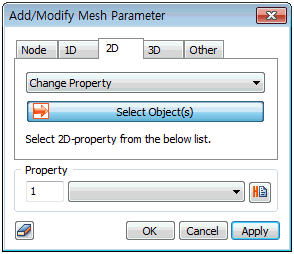
Change Property
Change the property assigned to a 2D element during its creation. Select the 2D element to modify and specify the property to change.
Change Element Order
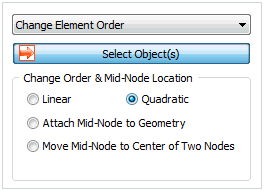
Add or delete nodes between a 2D element to change it into a higher order or lower order element. Changing the position of the middle node to the start or end point for high order element can create an arbitrary middle node on the geometry shape.
Change Coordinate System
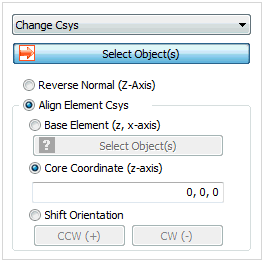
For a 2D structural element, the print coordinate system (material coordinate system) can be defined separately. Here, if the print coordinate system (material coordinate system) is set as the element coordinate system, it is important to check the coordinate system of the structural element to make sure it is in 1 direction. Switch the element z axis direction or unify the normal directions of the selected elements to the normal direction of the reference element. When using centered coordinates, use the direction vector from the reference point to each element to modify the normal direction of each element.

Add Thickness
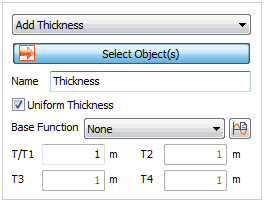
The thickness of a 2D element is defined in the section properties, but an additional thickness can be specified for selected elements. Select the 2D element and change the thickness by specifying the thickness for each element node.
Add Offset
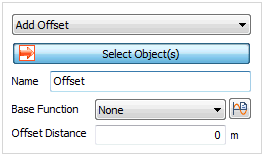
Define the offset distance by considering the sectional properties (shape) of the structural element. The offset is the eccentric distance between the positions of the geometry shape (surface), needed to create a structural element, and the reference axis, where the loading is applied and the results are calculated. The distance can be specified by a function on the GCS and the direction moves to the normal direction (+,-) of the 2D element. When applying the function, the input offset distance becomes the scale factor that is multiplied to the function for calculation.
Add Material Orientation
Apart from the material coordinate system specified on the 2D element property, a separate material coordinate system (print coordinate system) can be additionally set for selected elements. The coordinate system can be defined as follows.
-
Coordinate System: Specify the material x direction in the X,Y,Z direction of the GCS. Both the Global rectangular coordinate system and Global cylindrical coordinate system can be used.
-
Angle: Specify the material x direction by setting the normal direction of the element as the revolution axis and rotating the coordinate system by the specified angle.
-
Reference Vector: Input or use the selected space vector direction to specify the material X direction.
-
Coordinate system and Angle: Specify the material X direction as the rotated direction of the reference coordinate axis on the selected coordinate plane.
Add End Release (Shell)
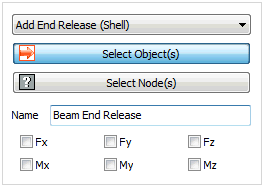
Specify the selected node boundary conditions for a 2D element. The axial direction and rotation conditions can be released for each element.
|


 Change the properties, difference, coordinate system of a 2D element or add the offset distance or the end boundary conditions (fixed, hinge roller etc.) of a surface element. The addable and changeable items are listed below. The material coordinate system is defined as the result printing coordinate system for the 2D element and a separate print coordinate system (material coordinate system) can be added to certain selected elements.