Graph
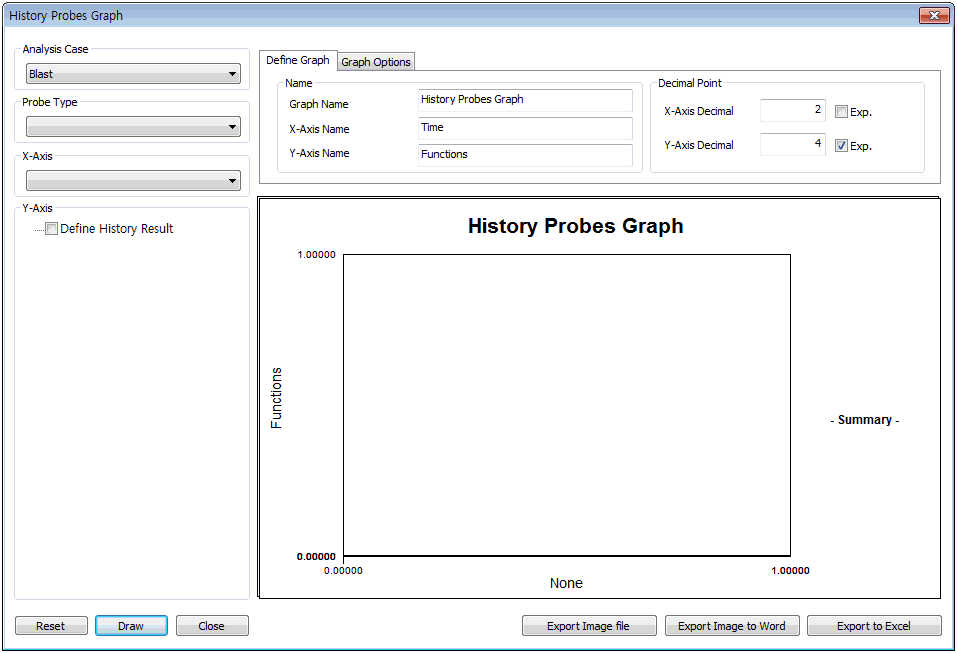
Select the analysis case
for result output and function type for each analysis
type. The function type is possible for analysis
cases with time (Transient seepage, Consolidation,
Fully coupled stress-seepage, Linear/nonlinear
time history analysis, 2D equivalent linear).
The probe type can select
the specified results from Analysis > Special
Post > History, and the results for each probe
type are as follows.
※Be aware not to include
a search type that is not output in the analysis
case.
Probe type |
Result
type |
Displacement/Velocity/Acceleration |
Displacement,
Velocity, Acceleration, Relative displacement,
Relative velocity, Relative acceleration |
Truss/
Embedded truss/ Geo-grid(1D) |
Strain,
Stress, Member force, Seepage,Hinge Force,
Hinge Deform |
Beam |
Strain,
Stress, Member force, Seepage,Hinge Force,
Hinge Deform |
Plane
strain |
Strain,
Stress, Member force, Seepage |
Plane
stress/Geo-grid (2D) |
Strain,
Stress, Member force, Seepage |
Axis
symmetric |
Strain,
Stress, Seepage |
Shell |
Strain,
Stress, Member force, Seepage |
Solid |
Strain,
Stress, Seepage |
Response
spectrum |
Relative
displacement, Relative velocity, Relative
pseudo-velocity, Absolute acceleration,
Absolute pseudo-velocity |
Transfer
function |
Displacement,
Velocity, Acceleration |
Seepage
node results |
Total head,
Pressure head, Flow rate |
Point
Spring/Elastic Link |
Strain,
Stress, Force, Hinge Force, Hinge Deform |
The
output function used on the vertical axis of the
result graph is selected on the Y axis. This function
must be defined in advance using Analysis >
Search time history result.
The
name of the graph, X axis and Y axis of the time
history graph can be defined using Define graph,
and the values can be expressed in exponential
form.
The
axis settings for the X axis and Y axis can be
set in detail using the Graph option. The max/min
value can be determined, and line shape, line
width, line form can be set. It can also be expressed
using a log scale.
The
generated graph is displayed in the dialog window,
and can be output in various forms using Print
image file, Print image word file and Print excel
file.
Plot
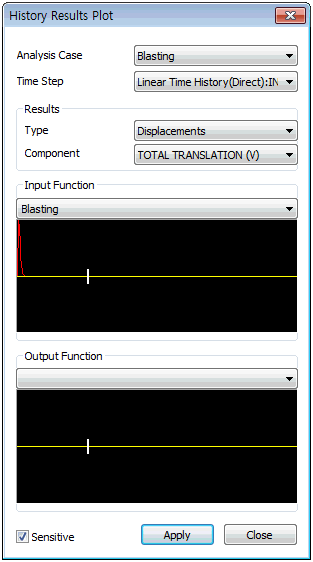
Select
the analysis case for result check and specify
the time step. The number of created time steps
is determined from the number of total time steps
defined in Analysis
> Analysis setting.
Selecting
the analysis result output type and results automatically
displays a contour on the screen.
The
time history function reflected in the analysis
case can be checked in the [Input Function]. The
specified time of the time step can be checked
on the input function, and the output results
reflect the selected time on the time step.
The
[Output Function] can be specified in Search time
history analysis, and the output result function
can be checked. The specified time of the time
step can be checked on the input function, and
the output results reflect the selected time on
the time step.
Check
the [Sensitive] option to immediately output the
results from the selected time step on the screen. |


 Identify the
results at particular positions for a time-existing analysis
case, using a time variant graph or plot the results for
each time period on the work screen.
Identify the
results at particular positions for a time-existing analysis
case, using a time variant graph or plot the results for
each time period on the work screen.